Complete and close scheduled tasks in InfoAsset Manager
Update scheduled tasks, set them up to be repeated, and mark them complete.
Complete and close scheduled tasks in InfoAsset Manager
Step-by-step guide
Once scheduled tasks are created, they can be updated or marked as complete. You can also set up scheduled tasks that are repeated at regular intervals. Once a repeated task has been completed, InfoAsset Manager can create a new task scheduled to take place after the repeat period has elapsed.
To manually mark individual tasks as complete:
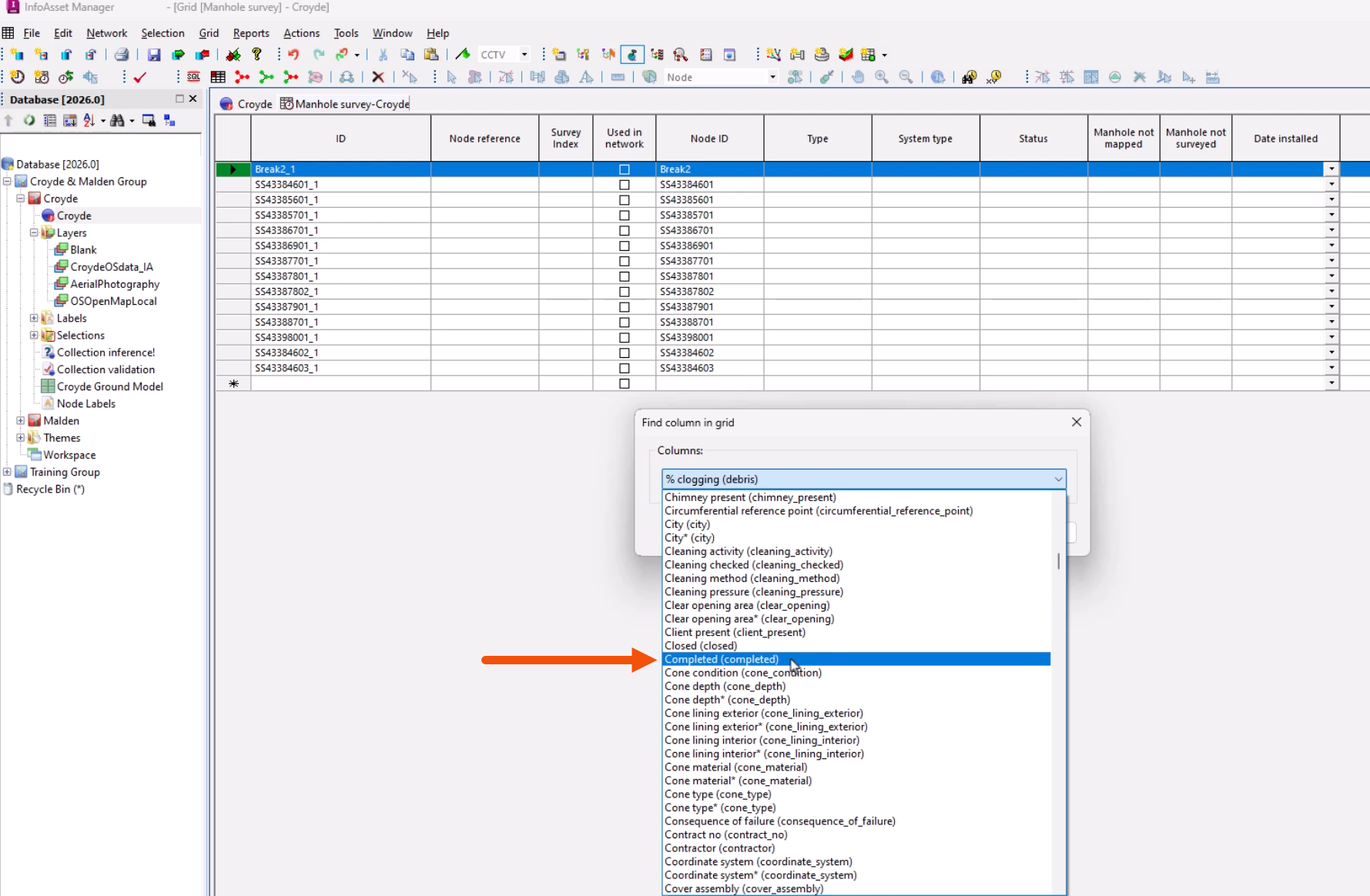
- In the grid window, right-click a column heading and select Find column.
- In the popup, select Completed.
- Click OK.
- In the row for the scheduled task, select Completed.
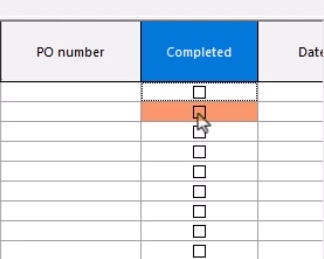
NOTE: This is usually done when filling in the other relevant fields as part of the task process.
To close multiple scheduled task objects:
- From the GeoPlan or grid window, select the task objects.
- In the Selection menu, choose Selection operations > Mark selected incidents and tasks complete.
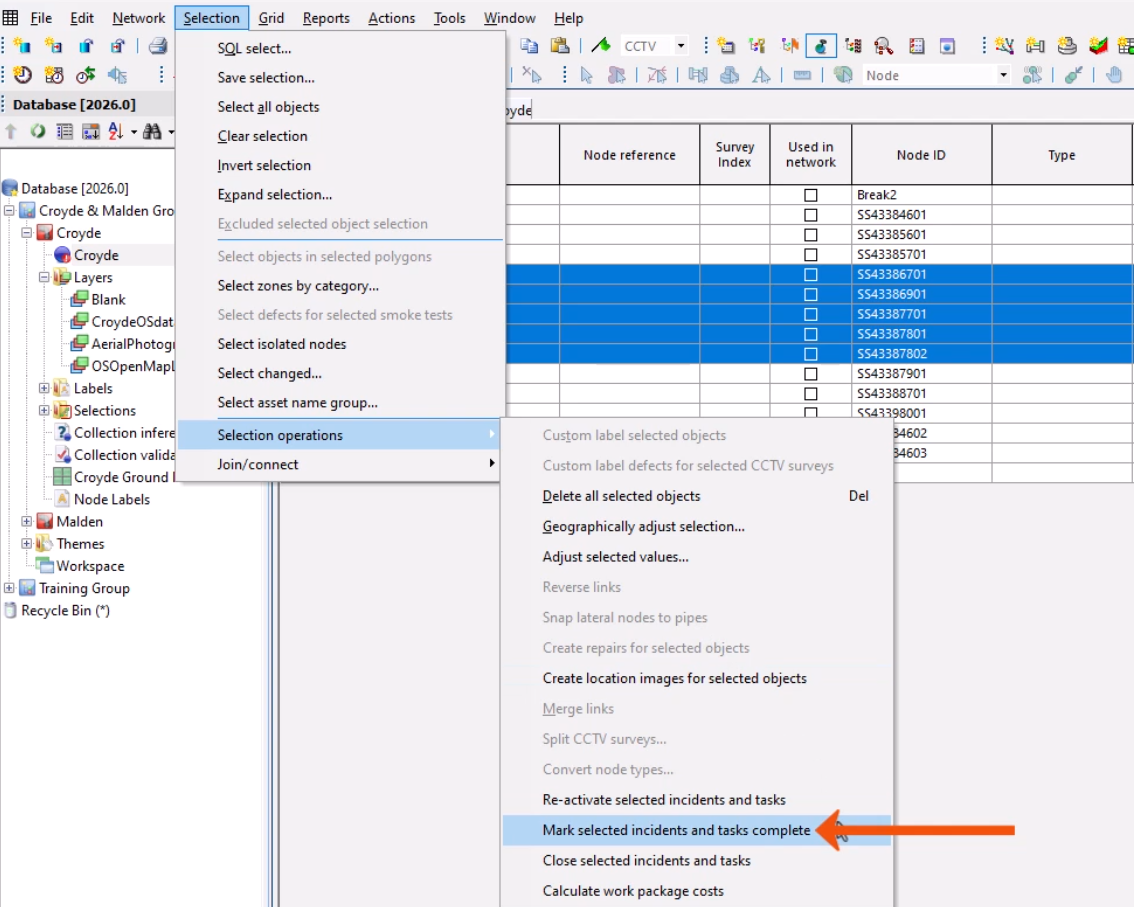
This option is also available from the GeoPlan context menu.
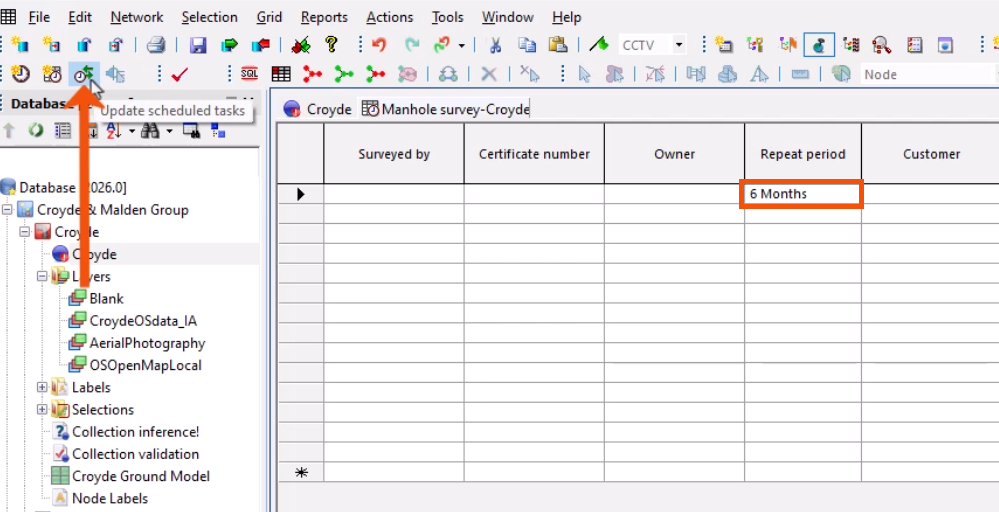
Scheduled tasks may be repeated at regular intervals. An object is considered to be a repeated task if the Repeat Period is set in the Schedule Info group of the object property sheet. The Repeat Period is also visible in the grid window.
For each repeated task, InfoAsset Manager checks the status of the Completed field in the Progress Info group.
- From the Scheduling tools toolbar, click Update scheduled tasks to create these new tasks.
- Individual tasks can be manually reactivated by deselecting the Completed and Closed fields for an object.
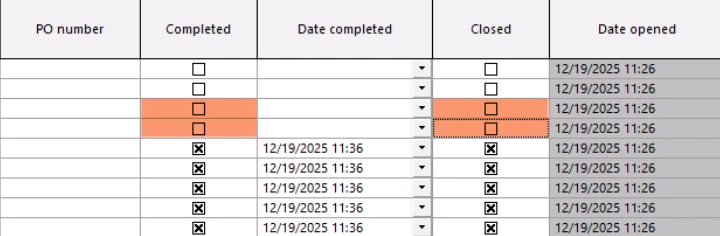
A selection of scheduled task objects can also be reactivated from the GeoPlan or grid window.
- Select the scheduled tasks.
- From the Selection menu, choose Selection Operations > Reactivate selected incidents and tasks.
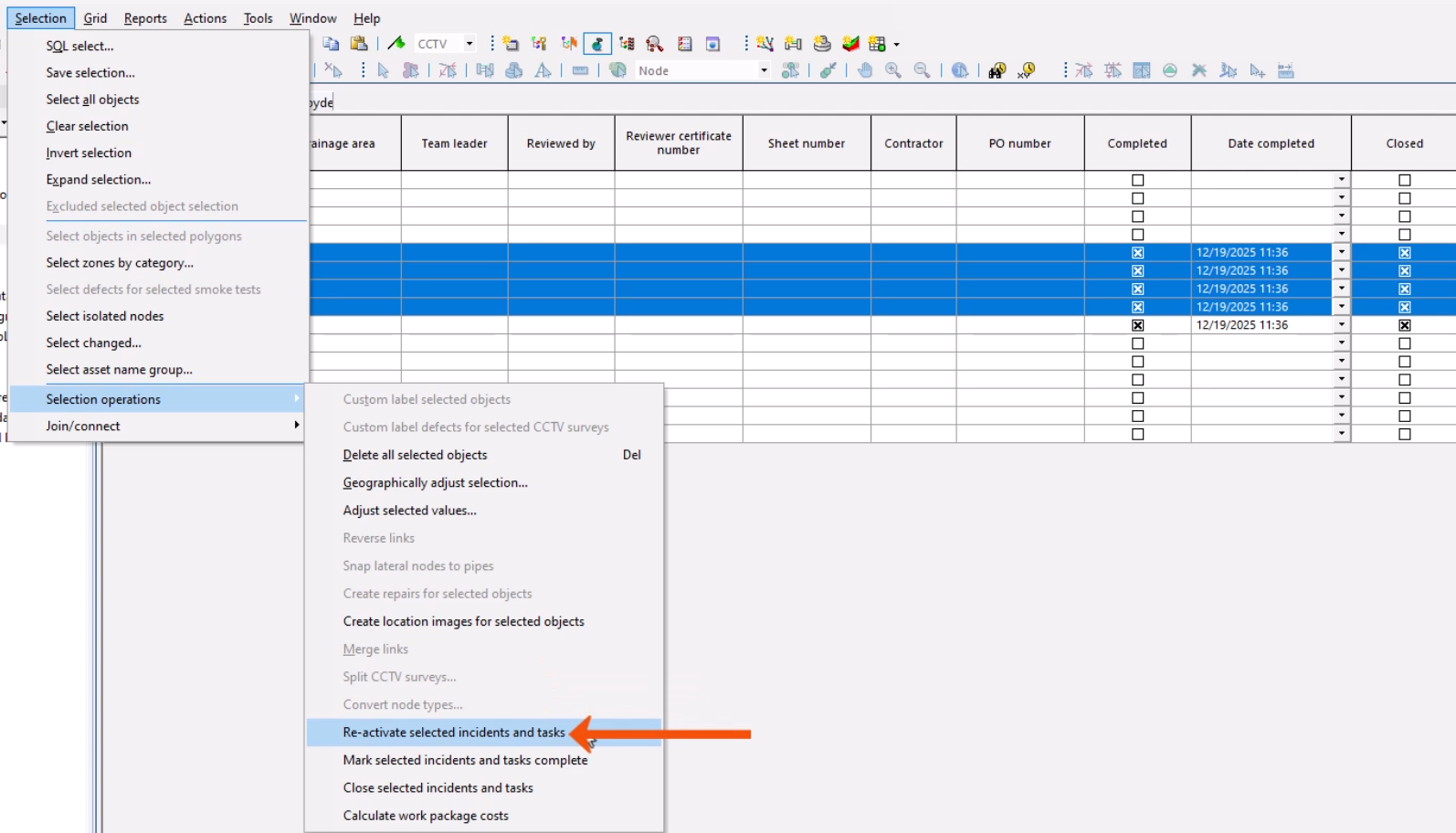
Note that this operation may also reset repeated tasks.