About reporting in InfoAsset Manager
Access the Reports menu to view the different types of reports and set report options.
About reporting in InfoAsset Manager
Step-by-step guide
InfoAsset Manager helps produce information needed to support the management and planning of water and wastewater projects. A large part of this is generating up-to-date reports of the network asset status.
InfoAsset Manager includes several built-in report templates that can be output in Microsoft Word or HTML formats. You can also use Custom MS Excel reports to export data from all or part of your network into a Microsoft Excel file. Following are some of the built-in reports:
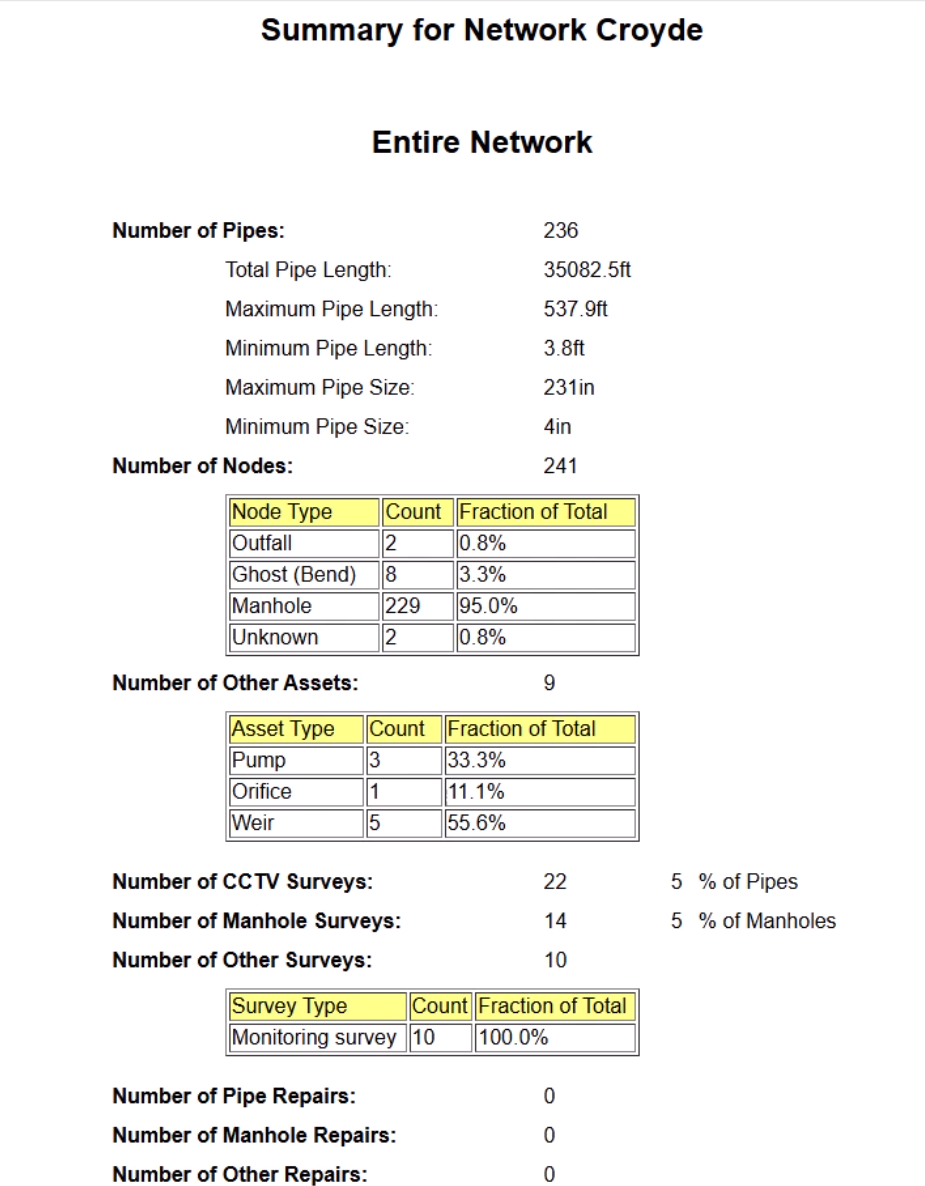
- The Summary Report is a short report that provides an overview of some or all of your network. It includes information about the number of nodes, as well as lengths and sizes of pipes.
- The Validation Report summarizes the information displayed in the validation output window.
- A Manhole Report provides detailed information about selected manhole objects in the network.
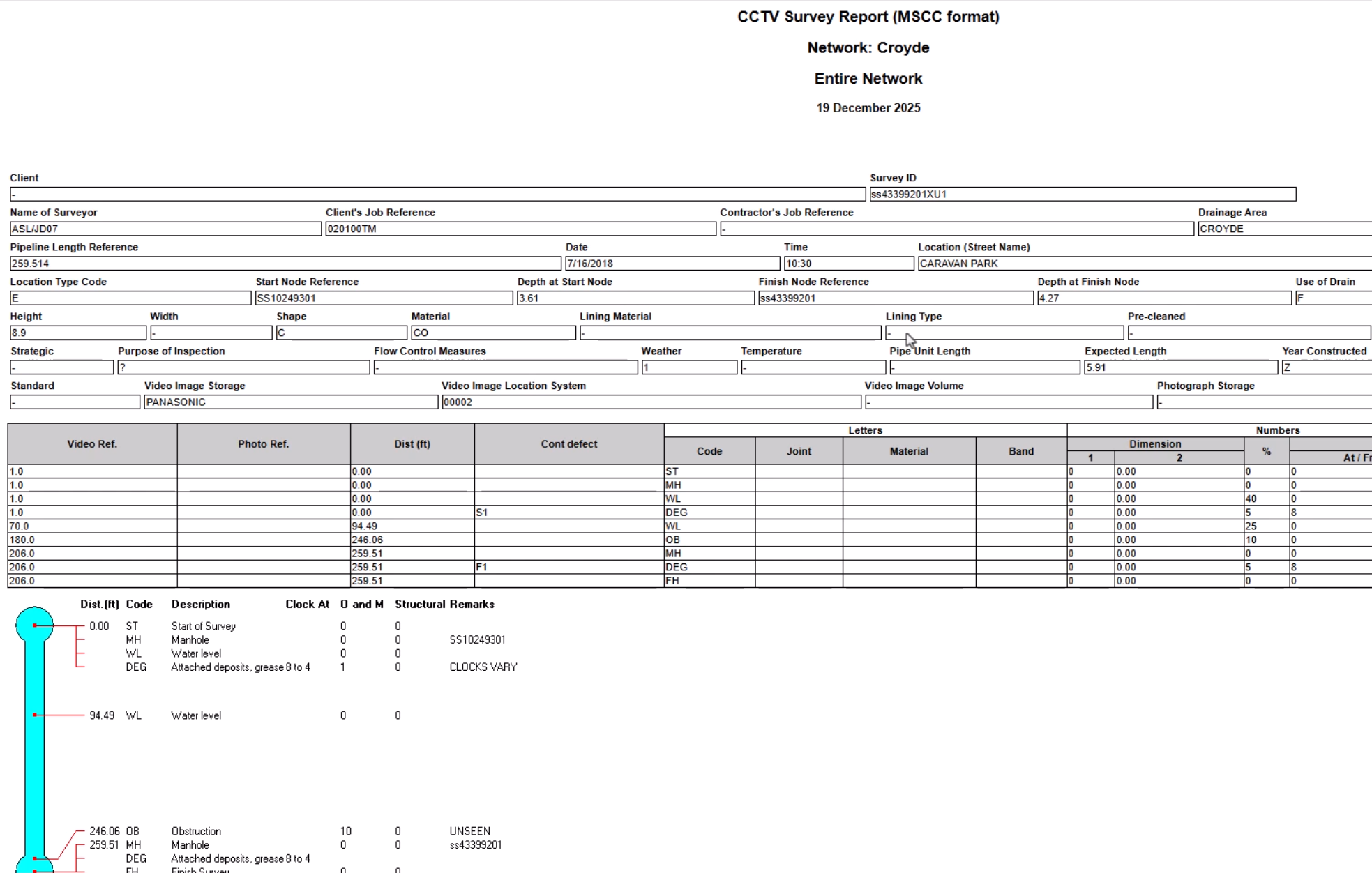
- A Survey Report provides summary and detailed information about selected survey objects in the network.
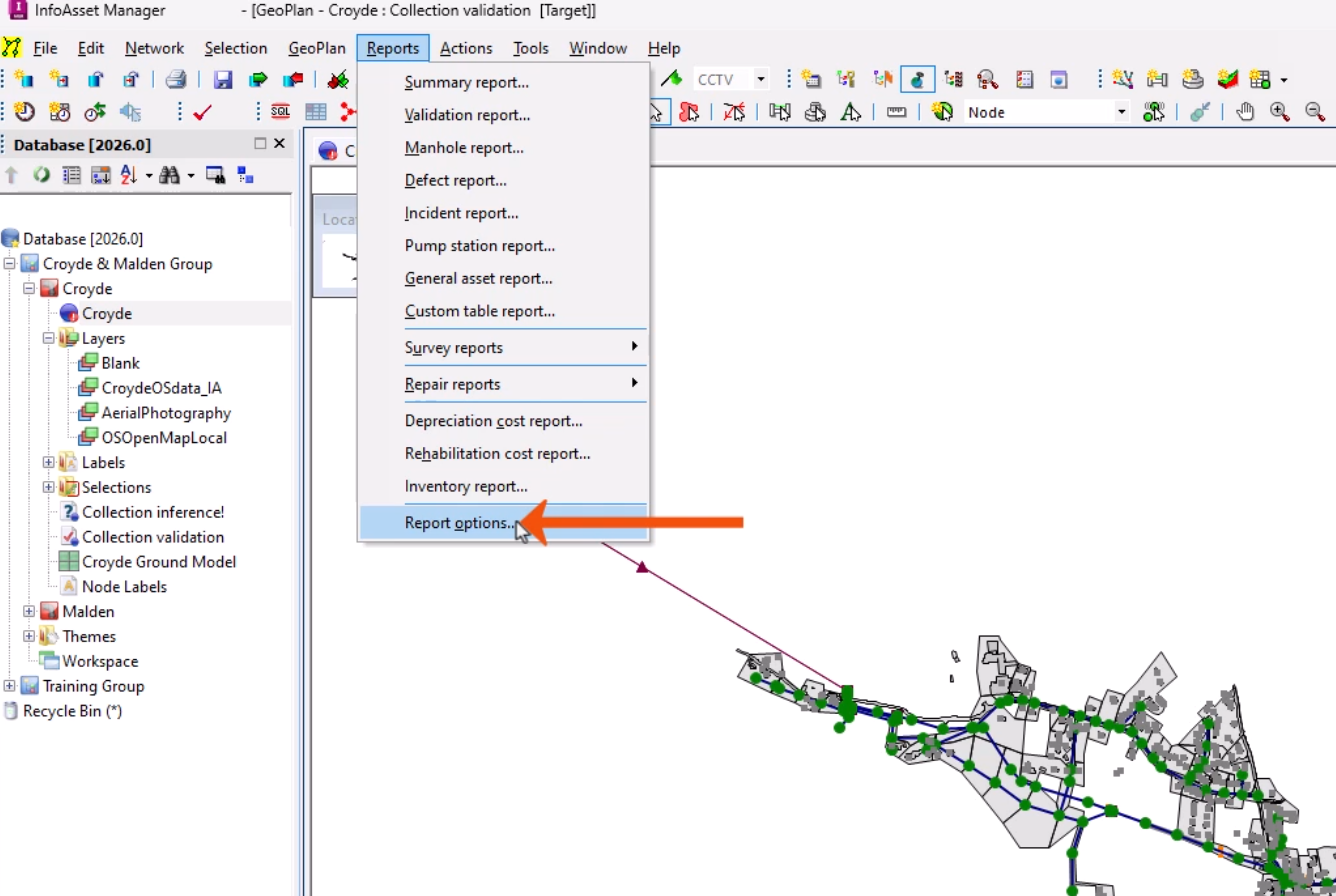
- Expand the Reports menu, which lists all the available report types.
- To set format, location, and template defaults for reports, select Report options.
- In the Report Options dialog, for this example, set the default Report Format to HTML.
- Select the checkbox to automatically open a report after it has been generated.
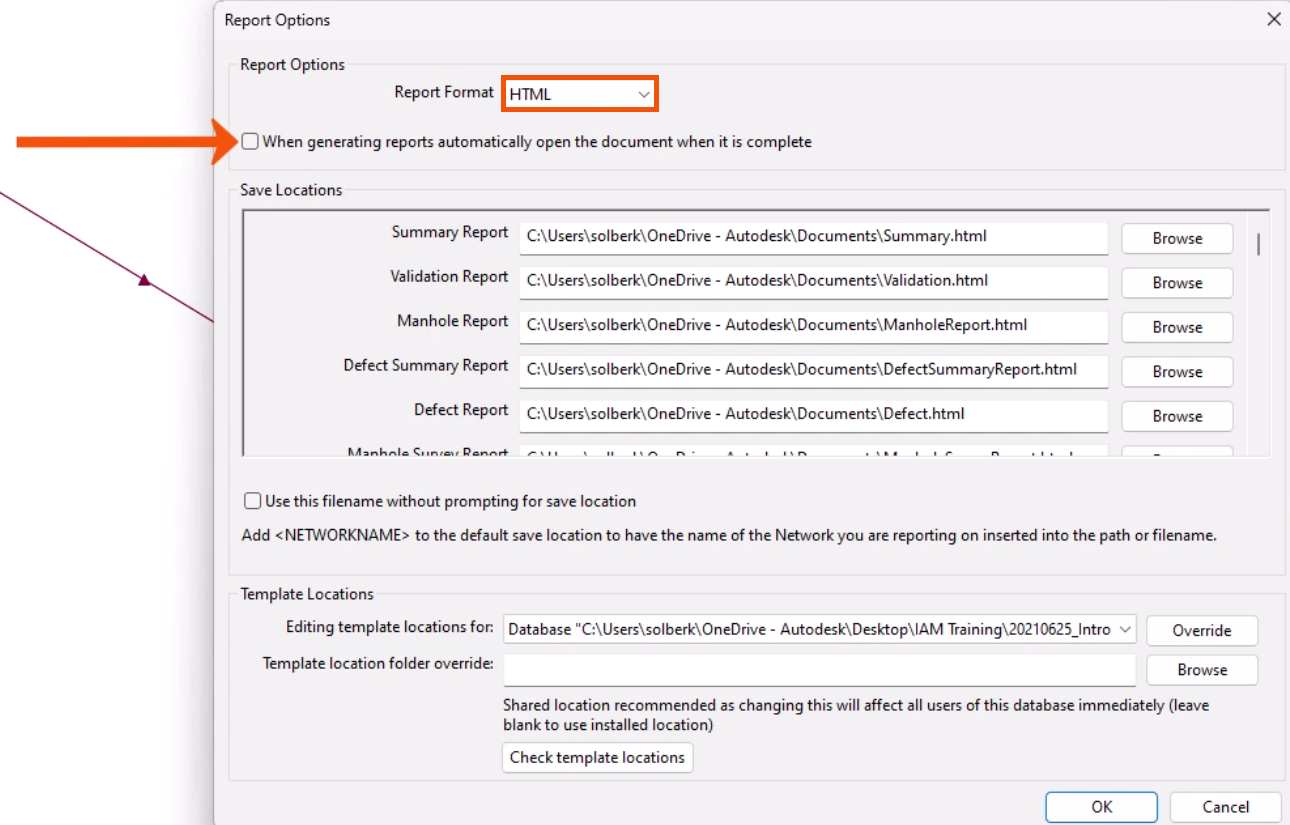
The Save Locations group lists the available built-in report types.
- To edit the default path for each report type; either type a new path name or click Browse to search for a folder.
When generating a report, by default, a prompt appears to confirm that the save location is correct.
- To bypass this step, select Use this filename without prompting for save location.
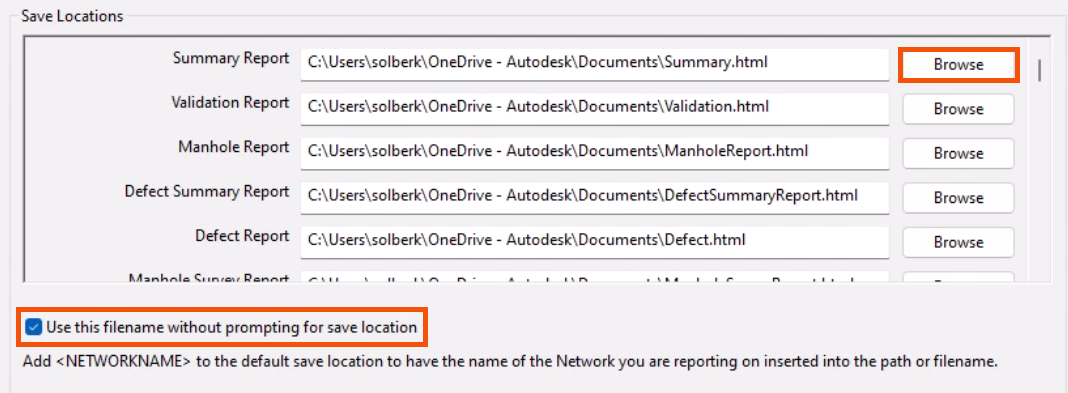
NOTE: A prompt may still be displayed if the file already exists, or if the filename cannot be used for any reason.
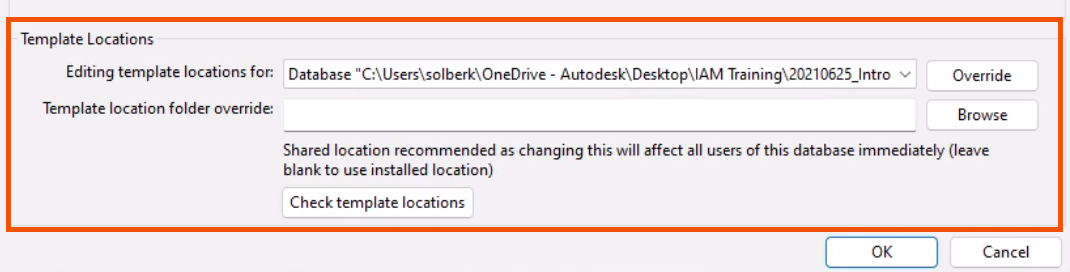
The Template Locations group specifies the path of a folder containing alternative report templates. The specified folder may be used to store customized templates to be used instead of the installed default templates.