Create and schedule tasks in InfoAsset Manager
Schedule tasks for different task types, such as manhole surveys.
Create and schedule tasks in InfoAsset Manager
Step-by-step guide
When using InfoAsset Manager to manage and maintain network asset data, various tasks can be created and scheduled, such as surveys, maintenance, or repair activities. In a typical workflow, field agents collect survey information and other data to send to the office to be input and analyzed. After analyzing the results, another survey, repair, or replacement may be deemed necessary. This activity can be scheduled using InfoAsset Manager.
To create scheduled tasks:
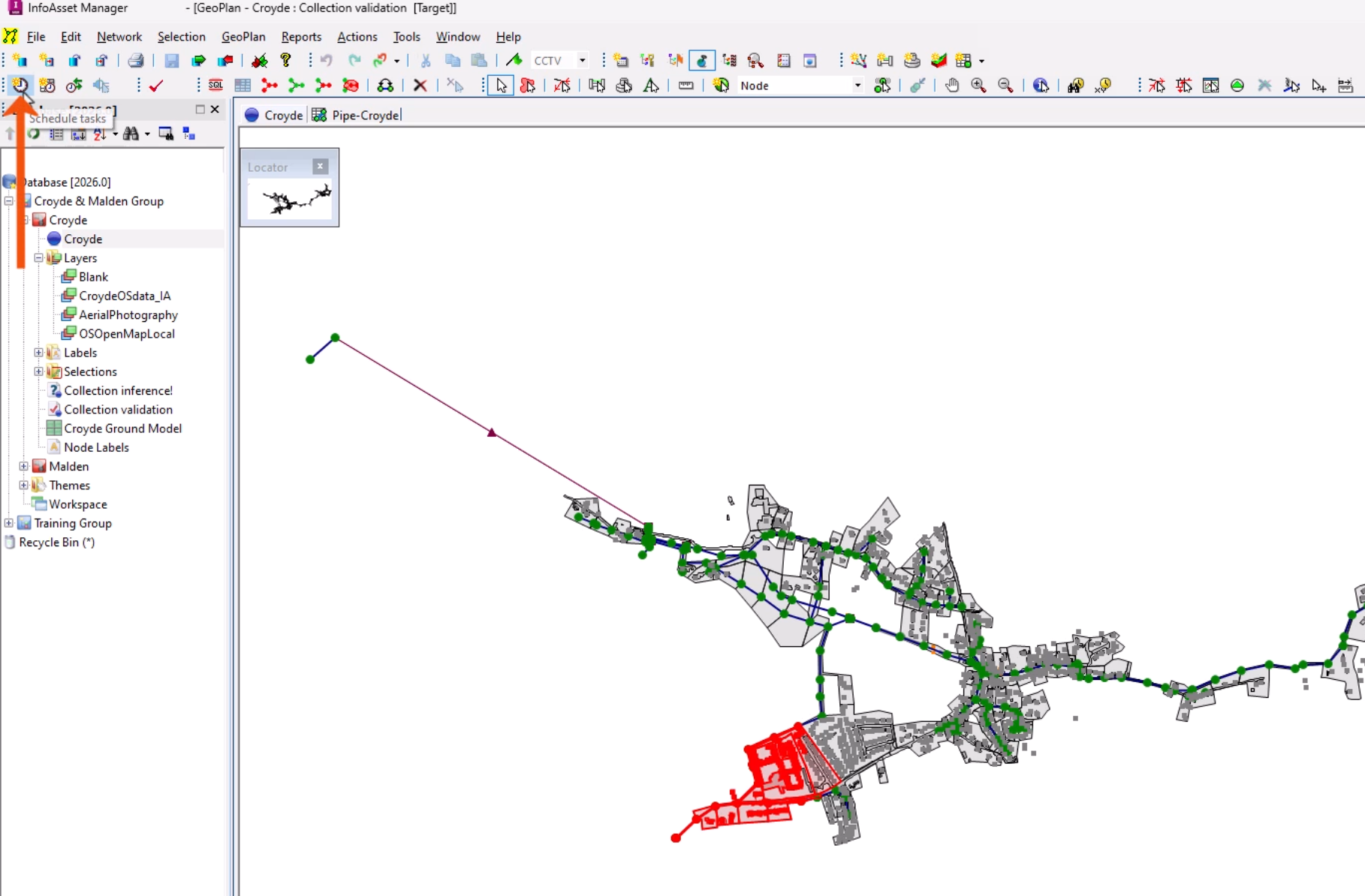
- On the GeoPlan, select an asset or group of assets.
- From the Scheduling Tools toolbar, click Schedule tasks.
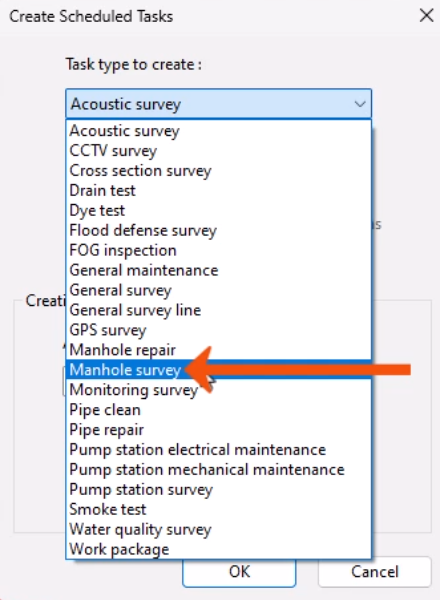
- In the Create Scheduled Tasks dialog, select a Task type to create, such as Manhole survey.
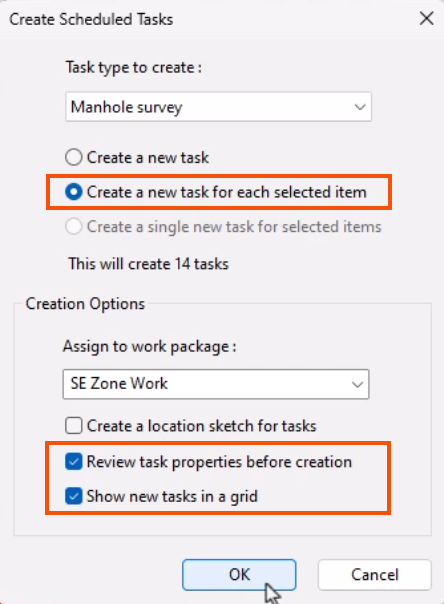
- Choose whether to create a single task or tasks for all selected items. In this case, select Create a new task for each selected item.
- Use the Assign to work package drop-down to select an existing package, or enter a name for a new work package.
Set the remaining options as required.
- Here, leave Review task properties before creation selected to automatically display a property sheet for newly created tasks.
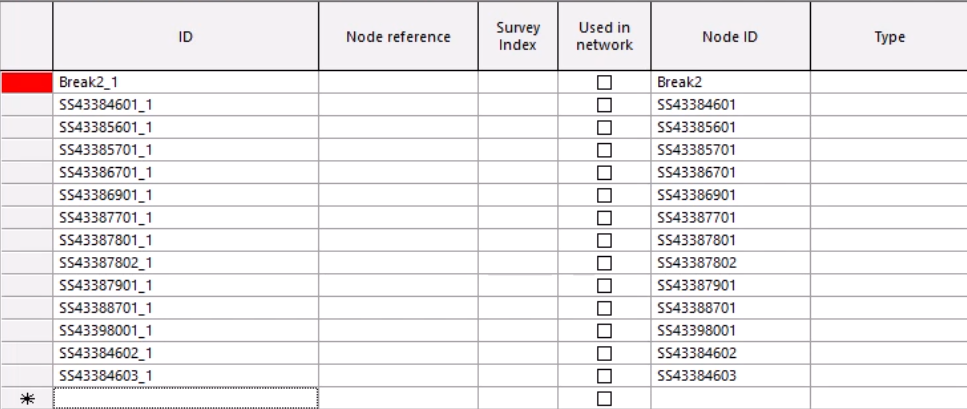
- Select Show new tasks in a grid to display a grid window containing the newly created objects.
- Click OK to create the tasks.
If one or more active tasks already exist for any of the selected assets, a notification is displayed.
- Click Yes to continue scheduling the new tasks.
Since multiple tasks are being created and Review task properties before creation is enabled, the property sheet opens to the Schedule page for the work package. All tasks associated with the work package will inherit all of the schedule information.
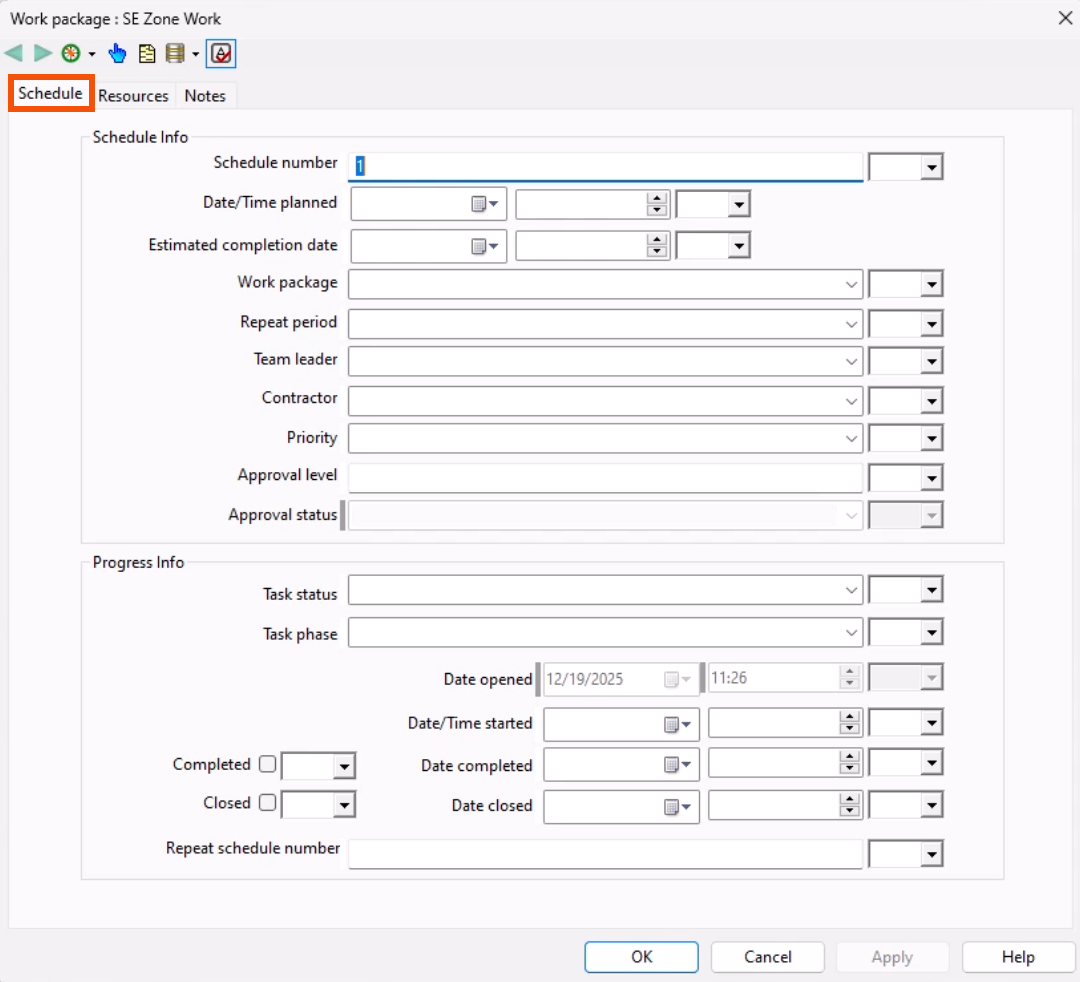
- Fill in any necessary details.
- Click OK.
To create a grid window of scheduled tasks, filtered according to values in schedule fields:
- From the Scheduling Tools toolbar, click Filter scheduled tasks.
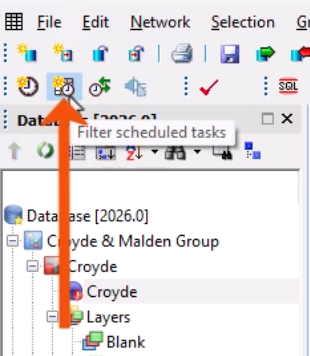
- In the Scheduled Task Filter dialog, select specific field values to filter the tasks. For example, set the Scheduled task type set to Manhole survey to display only surveys of that type in the grid.
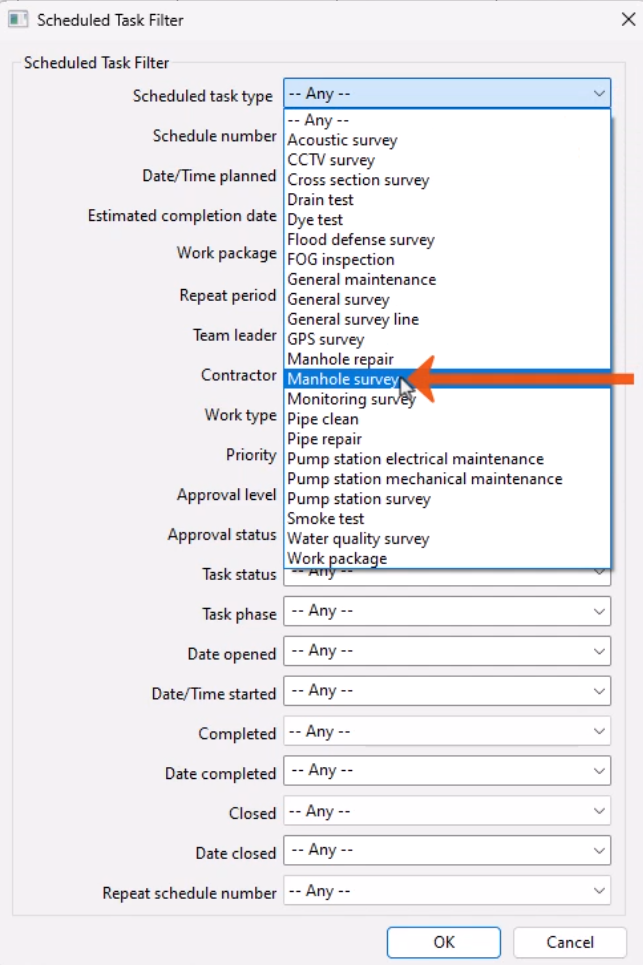
- Click OK to display the filtered grid window of task objects.