Use custom scheduling in InfoAsset Manager
Identify when to use custom scheduling and configure the Custom Scheduling dialog.
Use custom scheduling in InfoAsset Manager
Step-by-step guide
Custom scheduling allows a set of user-specified SQL queries or cost/duration calculations to be run automatically at the beginning or end of a scheduling process. The queries are run when creating and updating scheduled tasks, and when updating active incidents. An example use of these queries is to transfer data from asset to survey objects.
Custom scheduling can remove the need to select Review task properties before creation from the Create Scheduled Tasks dialog.
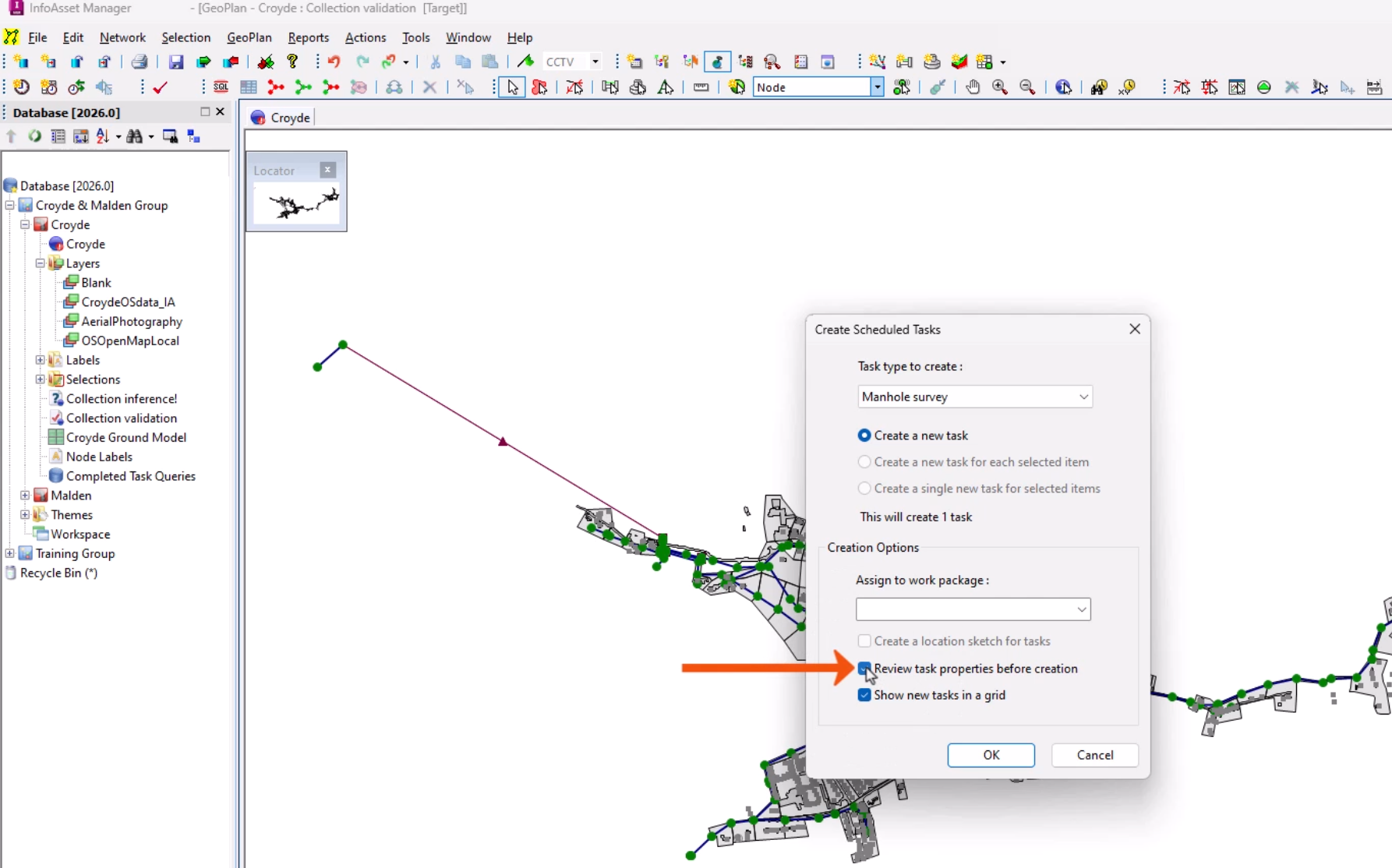
Instead, you can enable a custom prompt dialog to show only the fields that need to be completed.
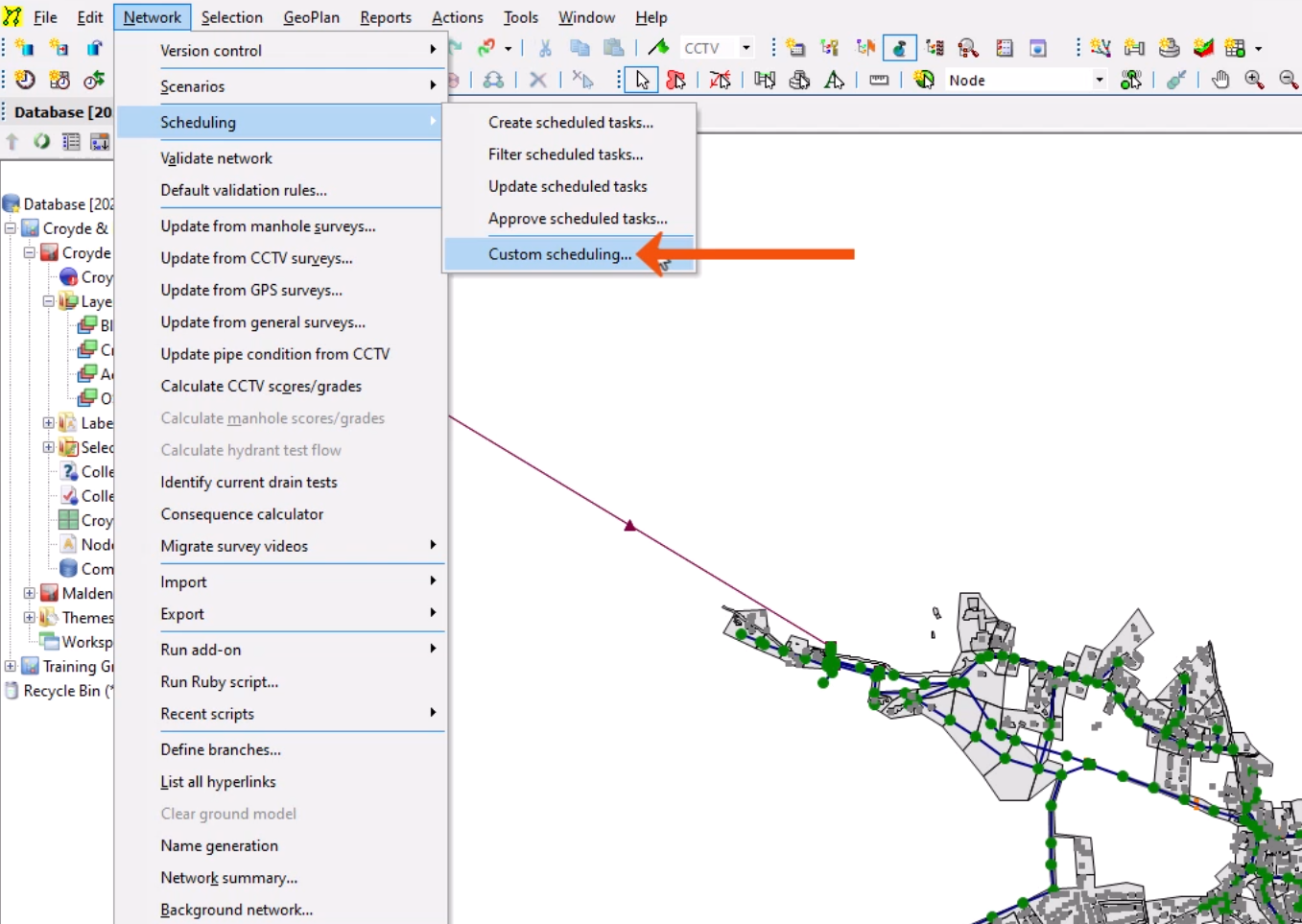
To set up or change custom scheduling for the current network,
- From the Network menu, expand Scheduling and select Custom scheduling.
Custom scheduling can be triggered in the following cases:
- Immediately after a scheduled task has been created from the Create Scheduled Tasks dialog.
- Immediately after a repeated scheduled task has been created by the Update Scheduled Tasks process.
- When updating a completed task or incident that has not yet been closed.
- In the Custom Scheduling dialog, click Show to expand any of the groups where you want to add a query.
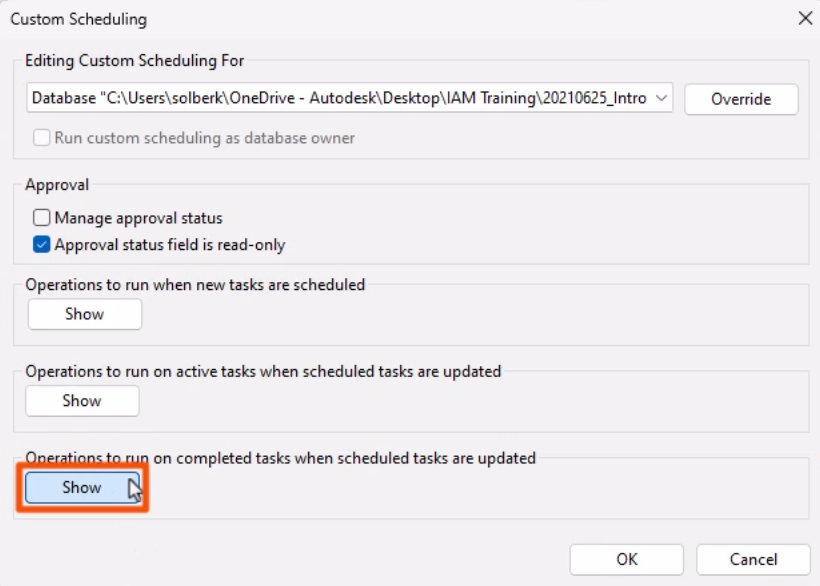
- Drag in a stored query that you want to run automatically.
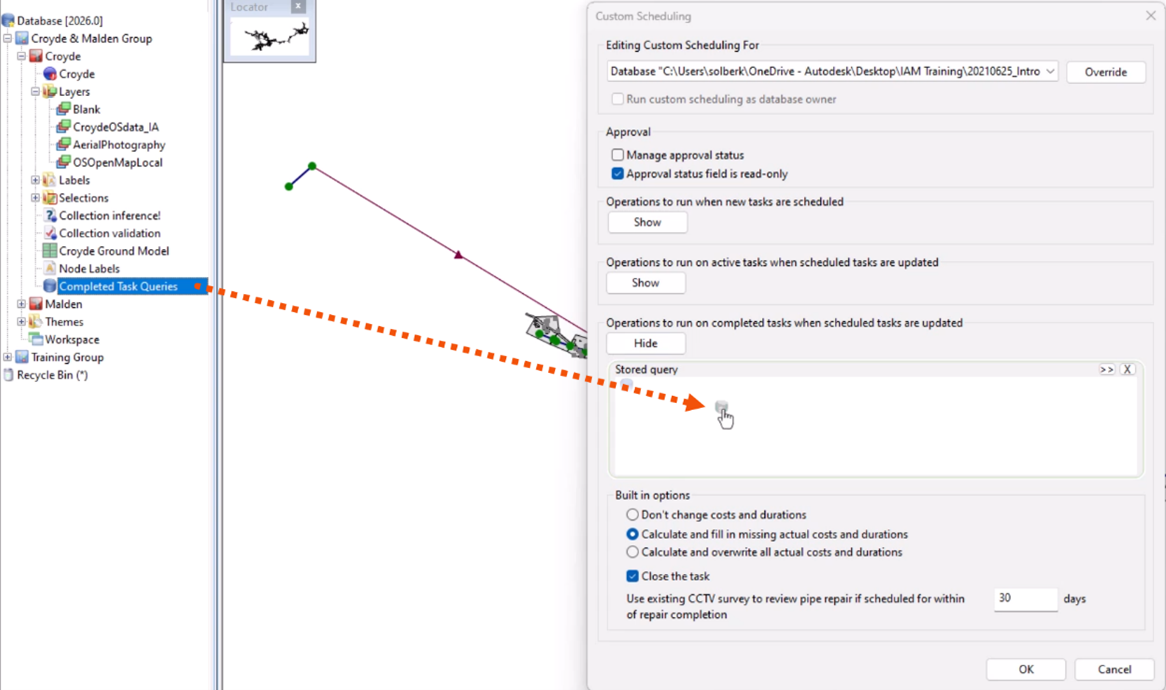
- Edit any other options as needed.
- Click OK.
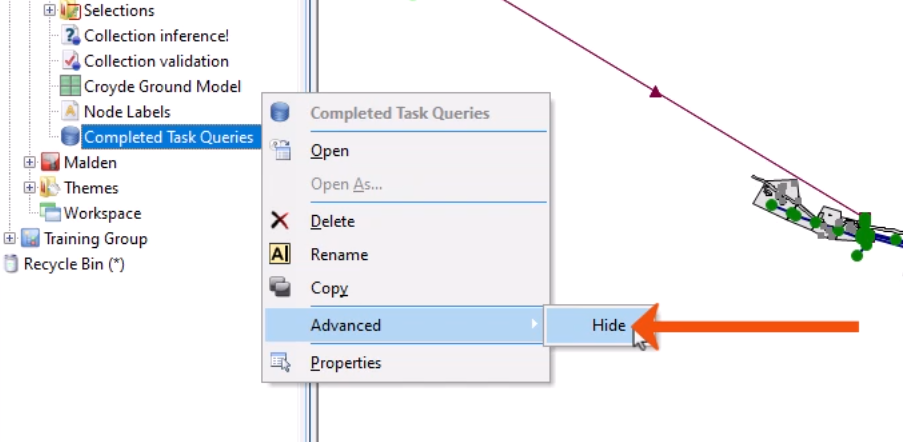
As the SQLs required for custom scheduling are database objects, these can be grouped within a specific Asset group, and then hidden or restricted, so that they are not edited by mistake.
- To hide a query, right-click it and select Advanced > Hide.