Import CCTV images, videos, and attachments
Import CCTV survey data with images and view the images in the property sheet.
Import CCTV images, videos, and attachments
Step-by-step guide
When working with CCTV surveys, it can be helpful to view associated images or video along with the survey data. Depending on the standard being used, images, videos, and attachments can form part of the survey dataset, or be imported separately.
In this example, an older survey with no images was already imported. Now, import updated CCTV survey data that includes images using the MSCC XML format.
Begin with a network open on the GeoPlan.
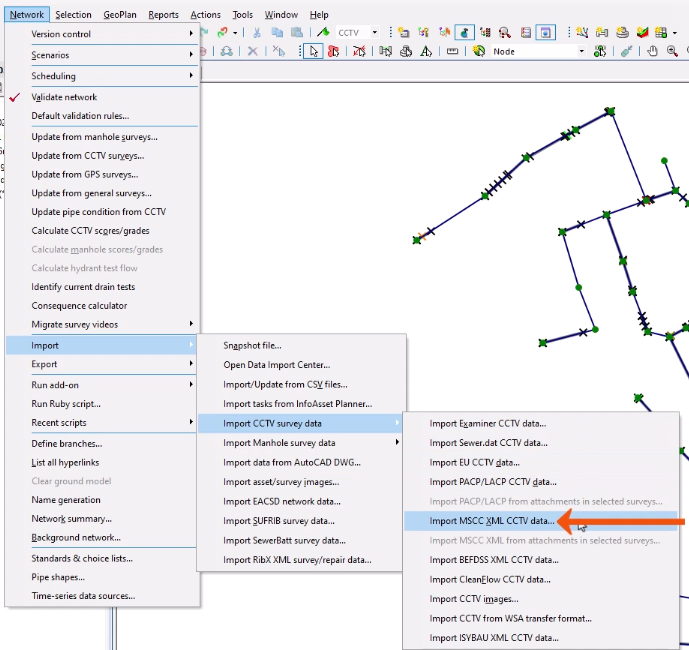
- From the Network menu, select Import > Import CCTV survey data > Import MSCC XML CCTV data.
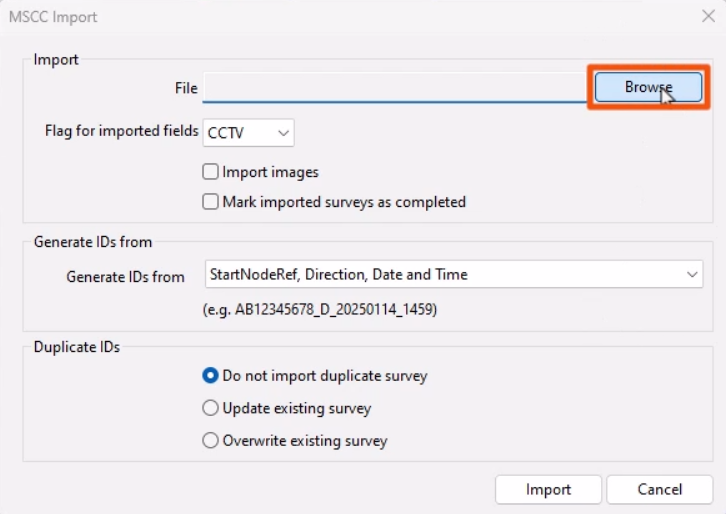
- In the MSCC Import dialog, next to File, click Browse.
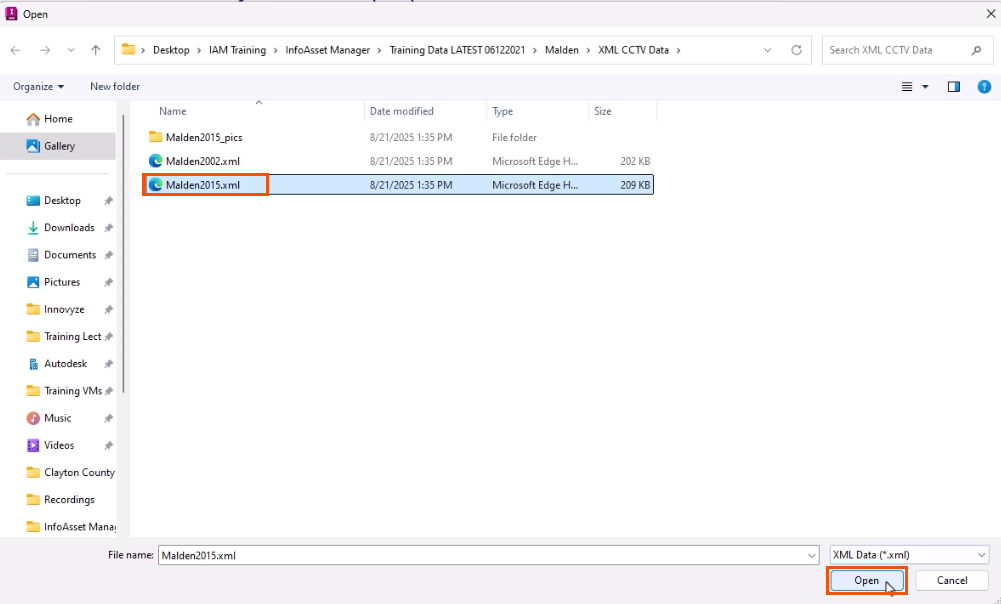
- In the Open dialog, locate and select the XML file to import.
- Click Open.
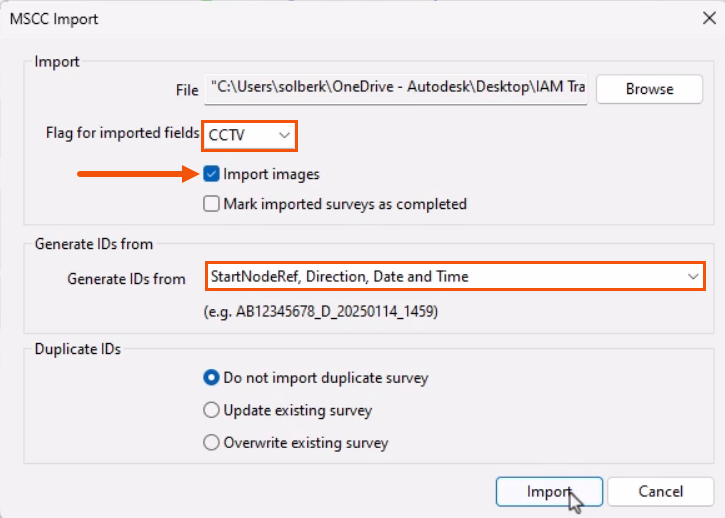
- Back in the MSCC Import dialog, set the Flag for imported fields to CCTV.
- Because this survey includes images that are in the same folder, select Import images.
- From the Generate IDs drop-down, select a method for generating survey IDs, such as StartNodeRef, Direction, Date and Time.
- Click Import.
A message indicates that the import was successful and confirms the number of surveys imported.

- Close the message.
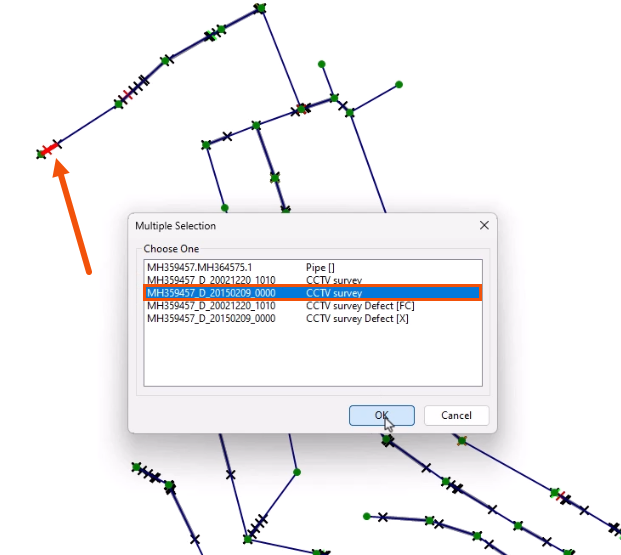
- On the GeoPlan, double-click a CCTV object.
- If the Multiple Selection dialog displays, make sure to select the most recent version of the survey from the options.
To review the images:
- On the CCTV Survey property sheet, switch to the Defects tab.
- Select a row in the grid.
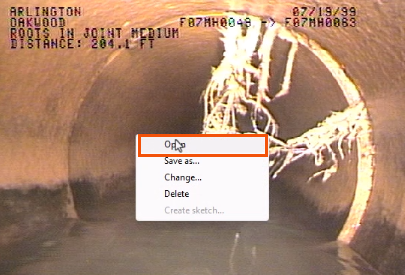
The image appears at the bottom of the page, if one is available.
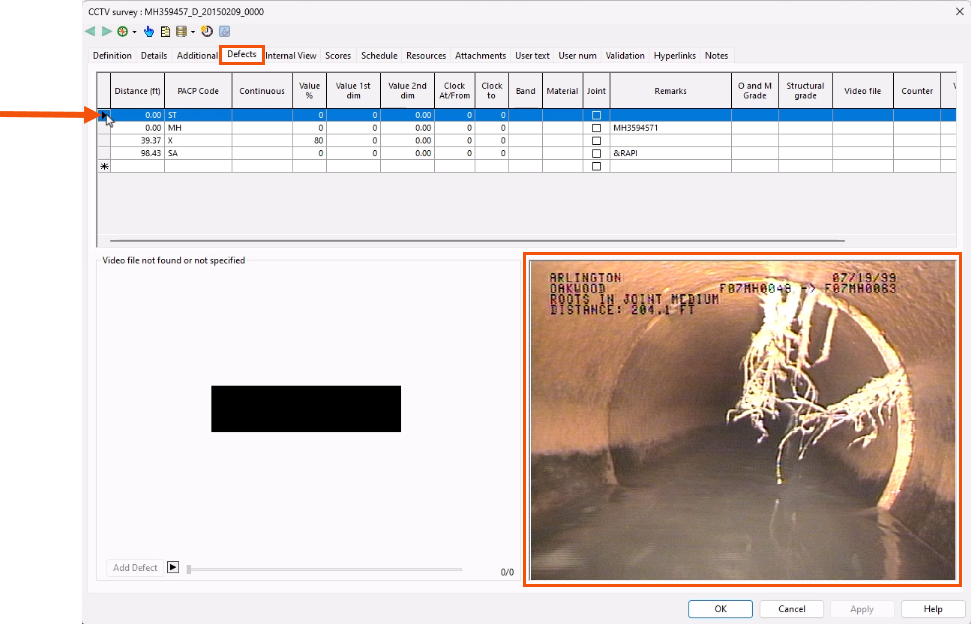
- To display the full-size image, double-click the image.
- Alternatively, right-click it and select Open.