Set up a database in InfoAsset Manager
Create and open a standalone database in InfoAsset Manager.
Set up a database in InfoAsset Manager
Step-by-step guide
There are two different types of databases used by InfoAsset Manager:
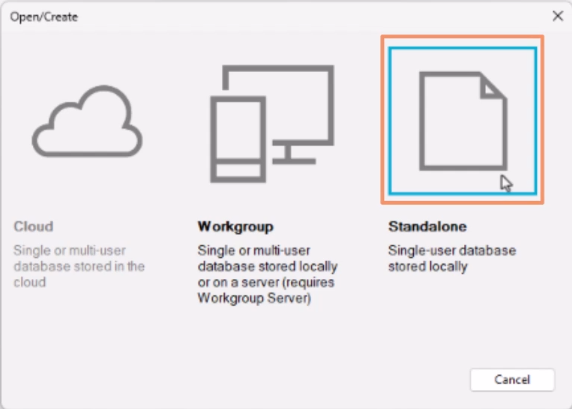
- Standalone databases are suitable for individual users working on small projects, working locally on a PC. This database type is only appropriate for use on an individual machine.
- Workgroup databases are suitable for individuals and groups of users, or for users working over Wide Area Networks. Workgroup databases require the InfoWorks Workgroup Server service to be running on a server. This is typically set up by a system administrator.
When InfoAsset Manager is started for the first time, it appears blank, because no database is selected.
To create a new database:
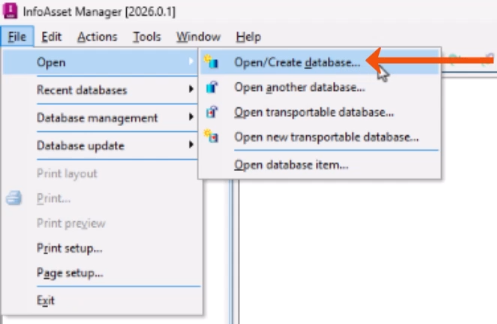
- From the File menu, select Open > Open/Create database.
- In the Open/Create dialog, select a database type. In this case, select Standalone.
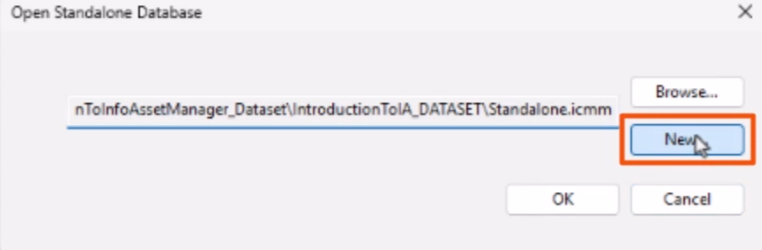
- In the Open Standalone Database popup, click New.
- In the Save As dialog, add a File name, such as “IAM Training Database”.
- Select the location for the .icmm database file.
For the best performance as a single user, store the database on the local hard disk.
Each database has a version number. For example, a database created with version 2023.0 of the software has a database version of 2023.0. This can be useful when collaborating with users who may be working with a different version of InfoAsset Manager.
- From the Database version drop-down, choose which version of the database will be used when a database is created.
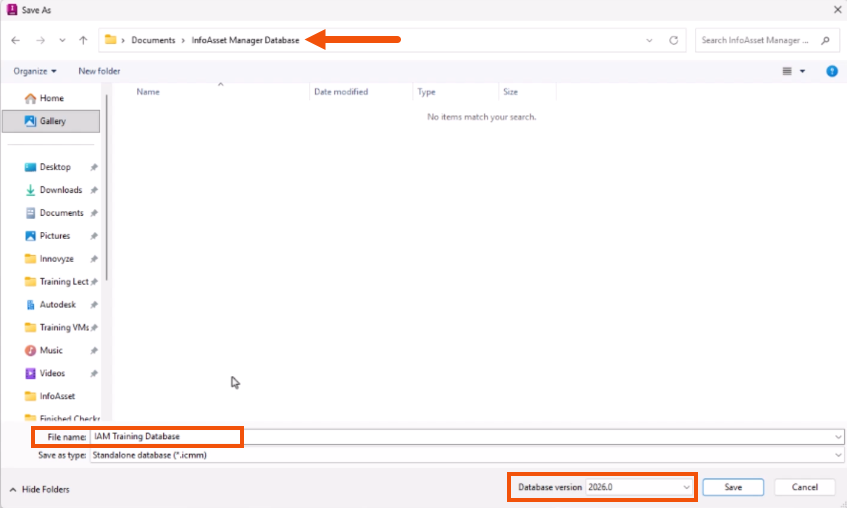
- Click Save.
- Back in the Open Standalone Database popup, click OK.
The new database is created and displays in the Explorer window.
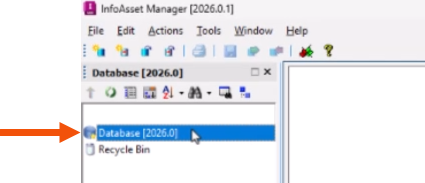
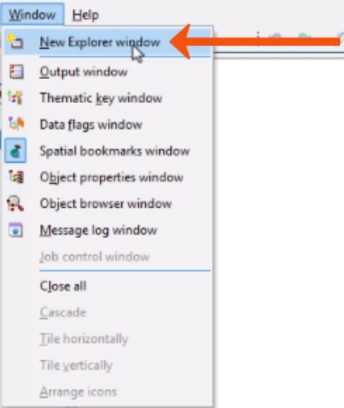
If the Explorer window is not currently open:
- From the Window menu, select New Explorer window.