Create a network in InfoAsset Manager
Identify the different types of networks in InfoAsset Manager and create a network to hold database objects.
Create a network in InfoAsset Manager
Step-by-step guide
In InfoAsset Manager, networks contain data for nodes, pipes, and other subsidiary objects or assets. A network is typically used to represent a single connected system of pipes and other assets.
The network includes a complete definition of each asset, including their physical location and connectivity. Using this information, InfoAsset Manager builds a map-based display of the network, allowing the generation of reports that describe the state of the network.
There may be as many networks in a database as required, each representing discrete portions of a system.
To create a network:
- In the Explorer window, right-click an asset group, such as Training Assets, and select New.
- Select the type of network that you want to create.
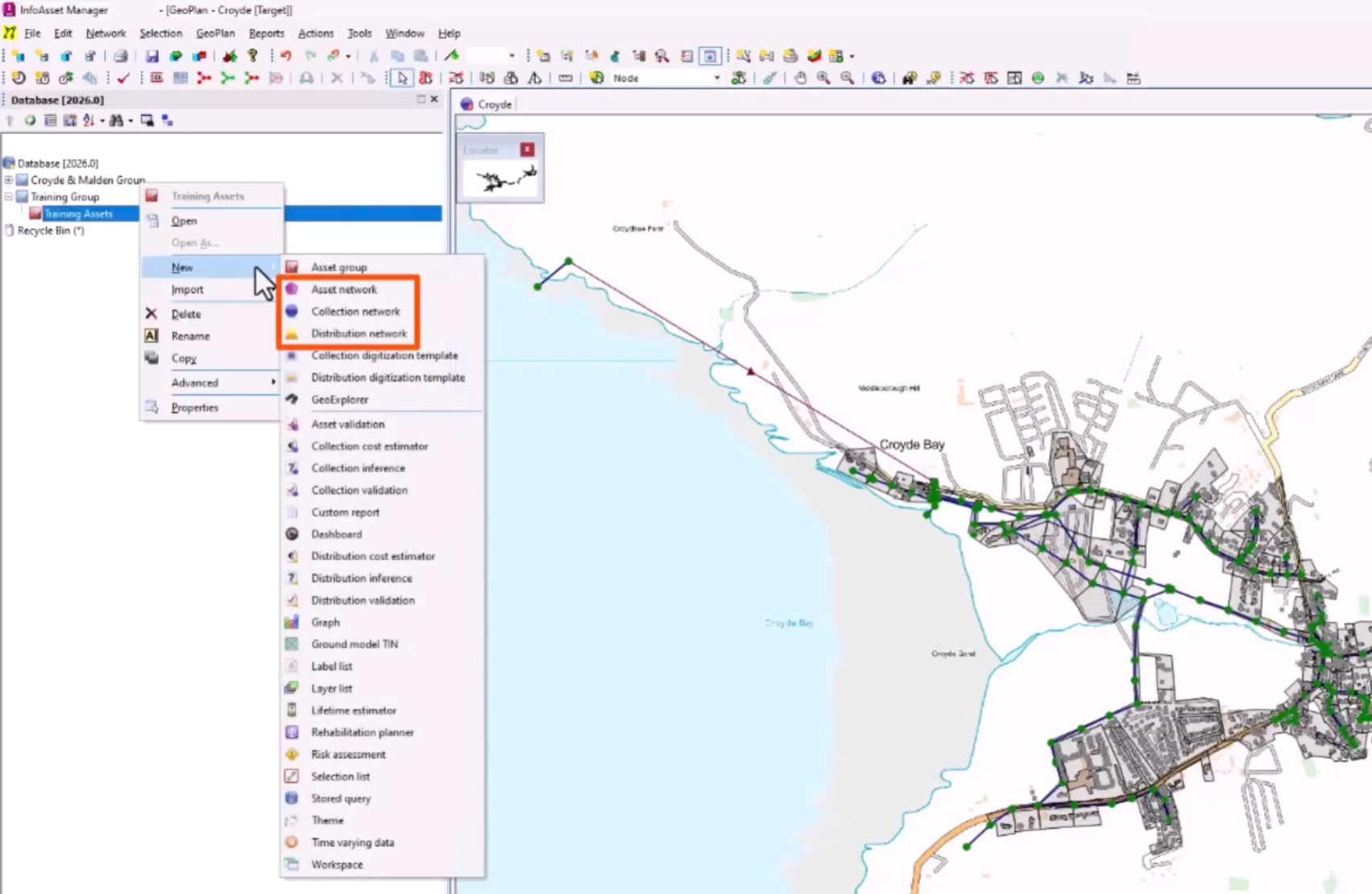
- An Asset network contains all of the information needed to describe the zones, resourcing system objects, and user-defined objects that make up an asset system.
- A Collection network contains the information needed to describe the manholes, pipes, and other assets of a sewer drainage system.
- A Distribution network contains the information needed to describe the pipes, fittings, and other assets of a clean water supply system.
- For this example, select Collection network.
- In the New Name pop-up, add a name for your network, such as “Collection network”.
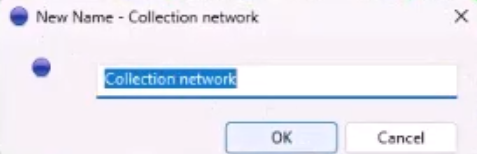
- Click OK.
- To open a network for viewing or editing, right-click the network and select Open, or drag the network from the Explorer window and drop it onto the GeoPlan.
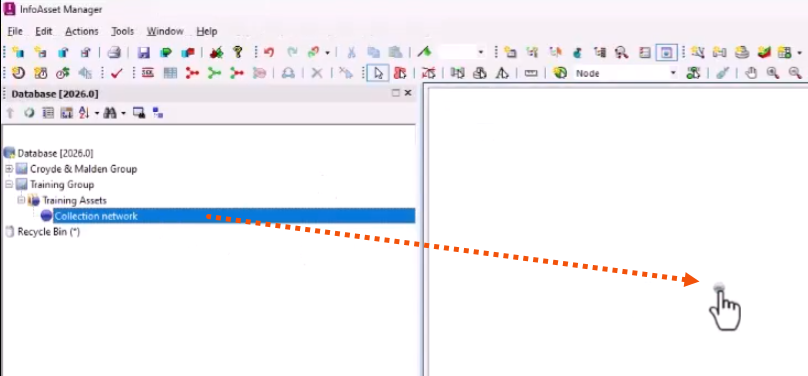
Network objects that make up a model, such as survey data, can be added by digitizing on the GeoPlan or by importing data from another source.