Controlling annotation display
Any referenced datasets can be downloaded from "Module downloads" in the module overview.
Create a new dimension style - Exercise
- On the Annotate tab > Dimension panel, click on the down arrow and select Linear Dimension Types.
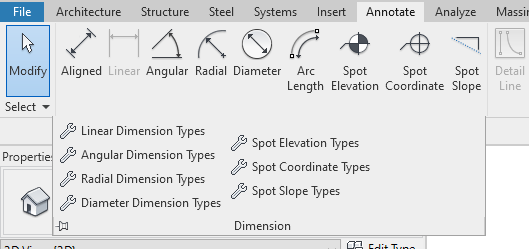
- Click on Duplicate and set the name as Arrow – 3/32" Times New Roman.
- Scroll to the Text section. Change Text Font to Times New Roman.
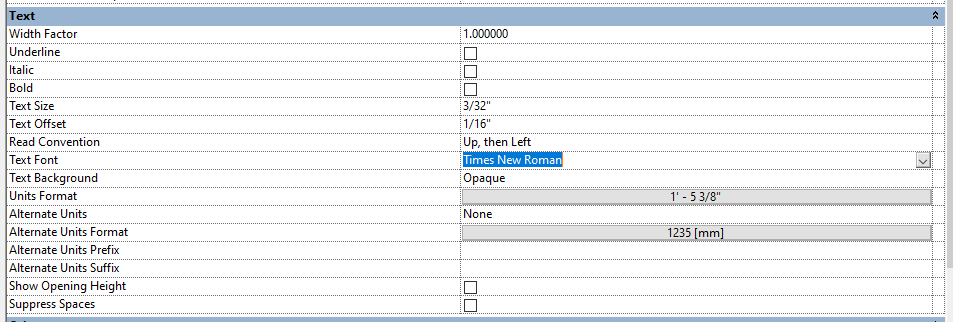
- Change Text Background to Transparent.
- We are going to set an Alternate Unit. Set the Alternate Unit to Below.

- Click on Alternate Unit Format. Set Rounding to 2 decimal places, set unit symbol to mm, and tick Suppress trailing 0's.
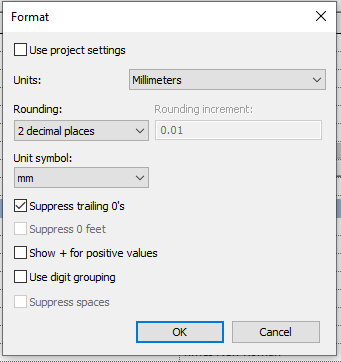
- Click OK and then OK to close the Dimension dialogue.
- Place a test of the new dimension style.
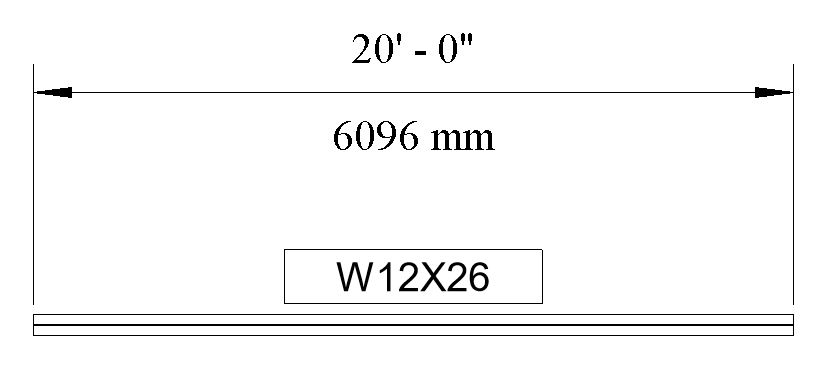
- Delete your dimension and test geometry.
- Click File > Save.