Generate a report in InfoAsset Manager
Set up and create a report and then view the results.
Generate a report in InfoAsset Manager
Step-by-step guide
In InfoAsset Manager, every report is generated using a Microsoft Word or HTML template, with the exception of Microsoft Excel Custom Reports. Format and save location options can be set in the Report Options dialog, which is accessed from the Reports menu.
Begin with a network open on the GeoPlan.
To generate a report:
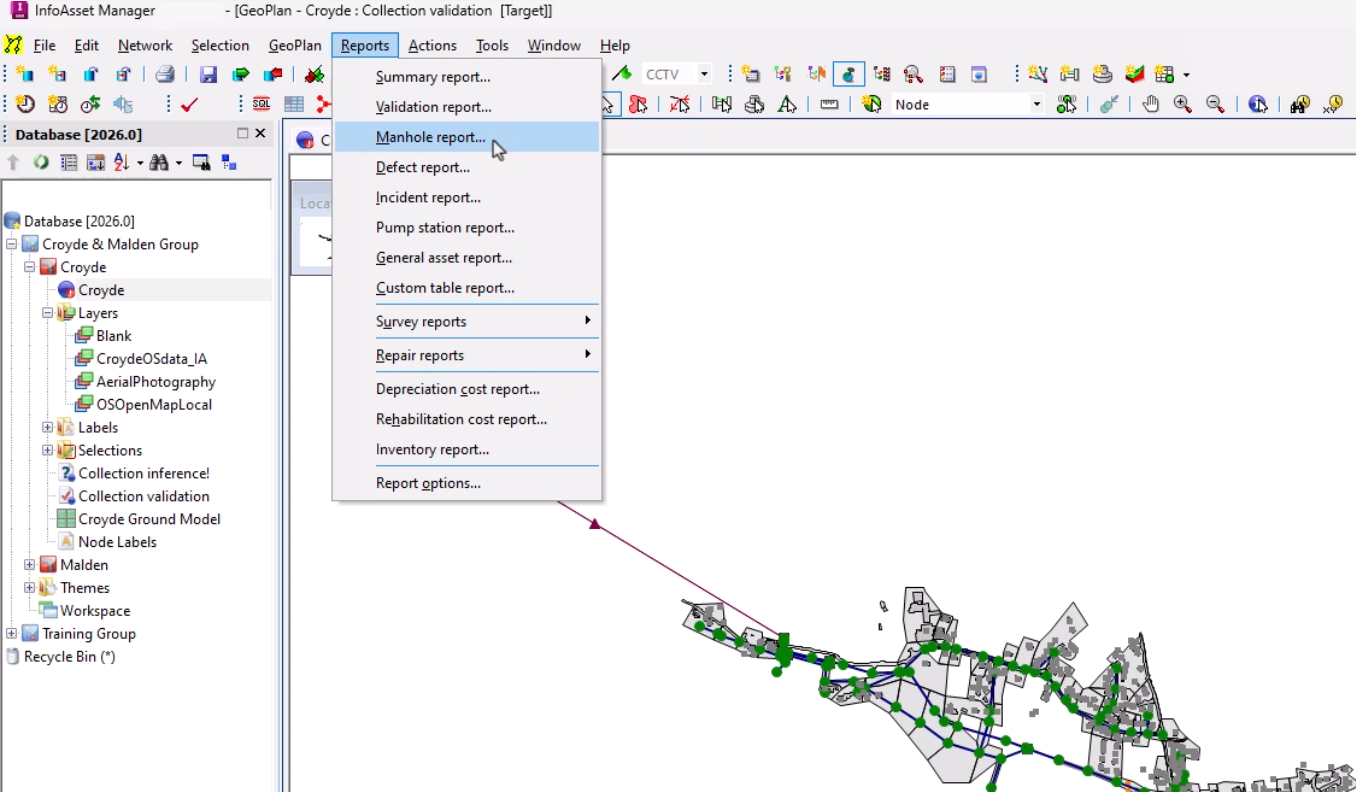
- In the Reports menu, select a report type, such as Manhole report.
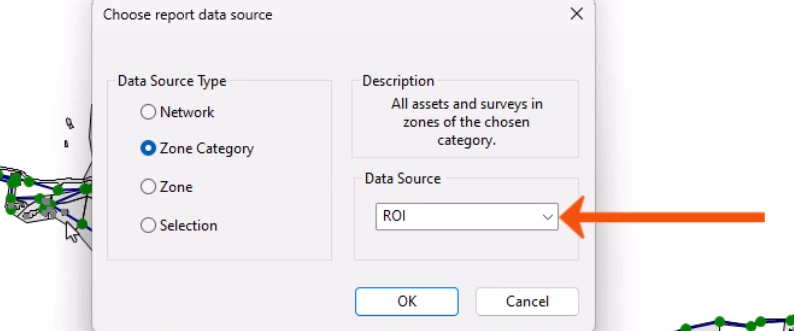
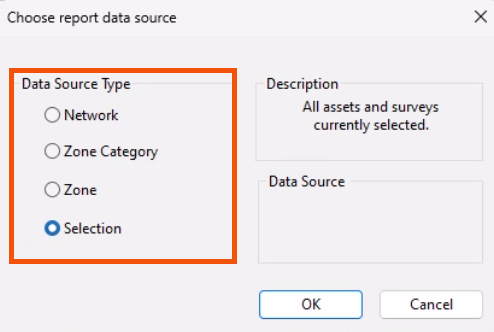
In the dialog that opens, the options for Data Source Type include Network, Zone Category, Zone, or Selection.
- If Zone or Zone Category are selected, also choose the zone or category name from the Data Source drop-down.
- In this case, set the Data Source Type to Selection.
- Click OK.
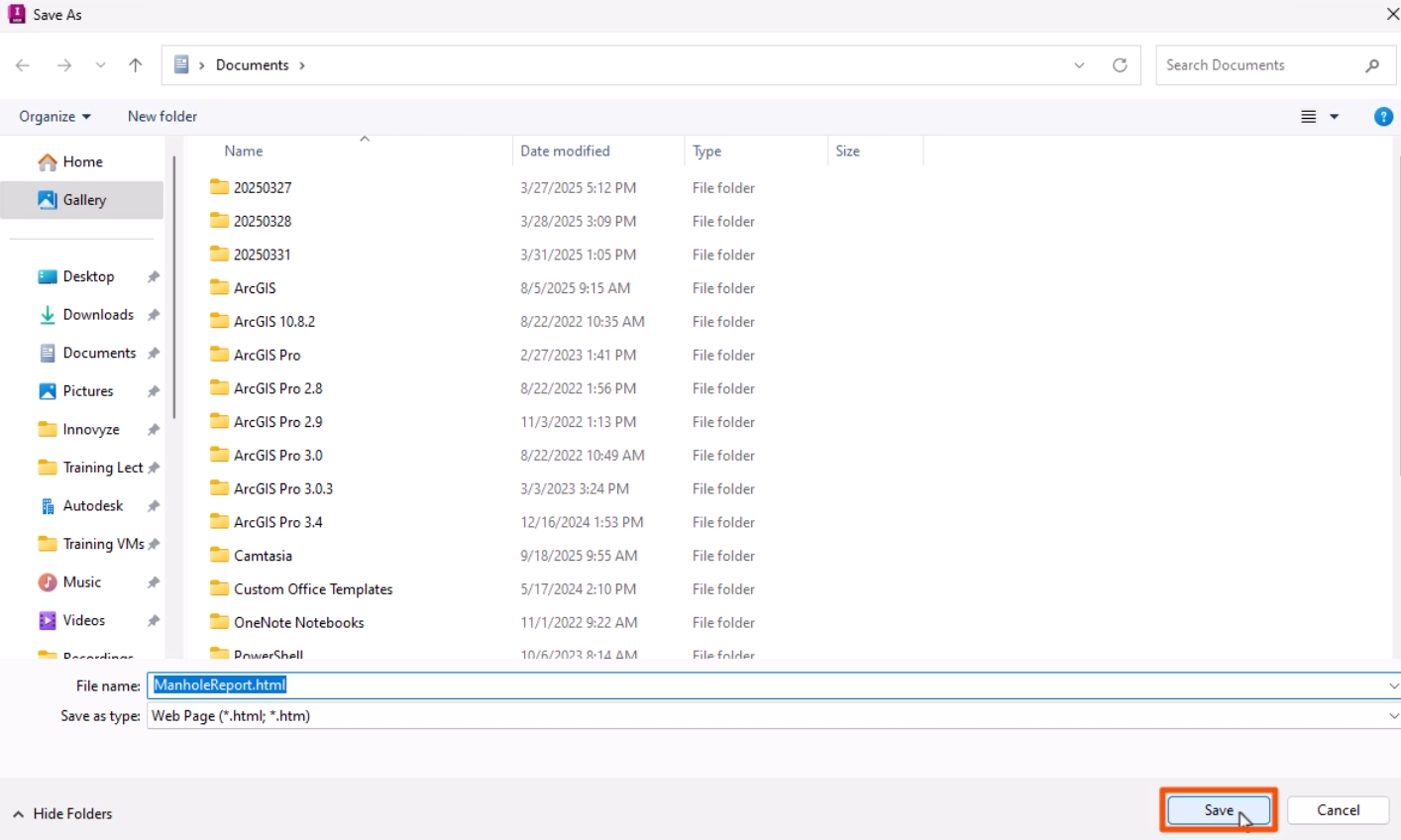
You can override these settings in the Save As dialog, if needed.
- Click Save.
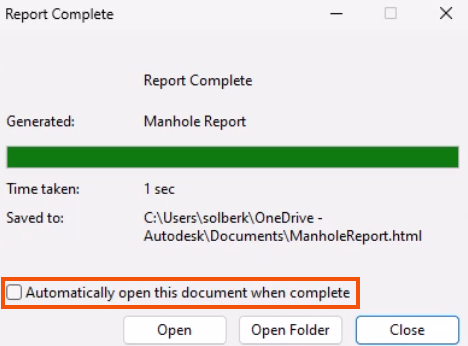
The Report Generation Progress dialog is displayed as the report is generated.
- When the report is complete, click Open.
- Or, enable Automatically open this document when complete to open the report automatically.
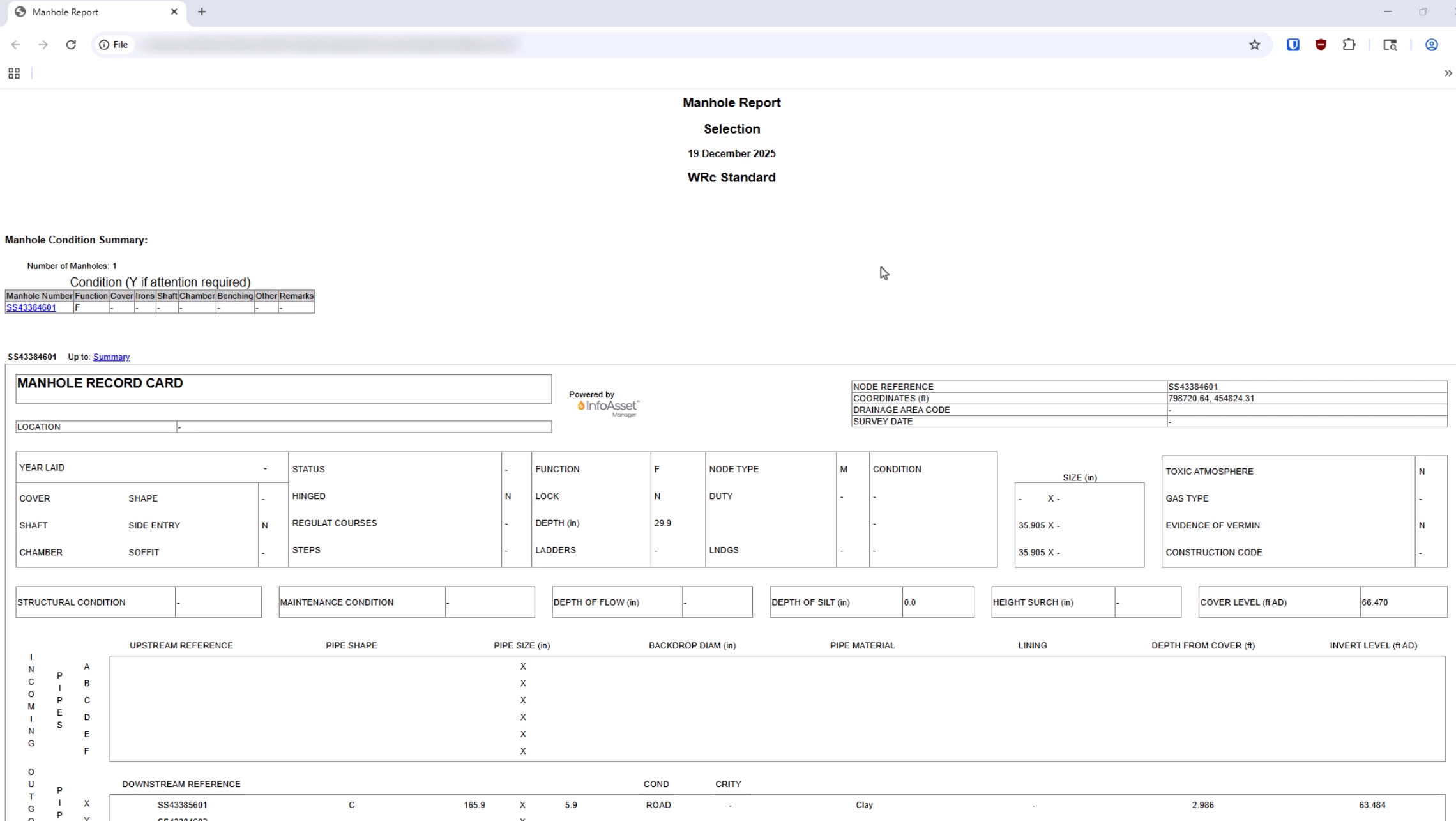
This manhole report includes details about a selection of manhole objects in the network, and a manhole record card is generated for each. Additionally, internal and location photos are reproduced to provide detailed information about the node assets.