Create custom Excel reports in InfoAsset Manager
Set up and run a custom Excel report based on data in your network.
Create custom Excel reports in InfoAsset Manager
Step-by-step guide
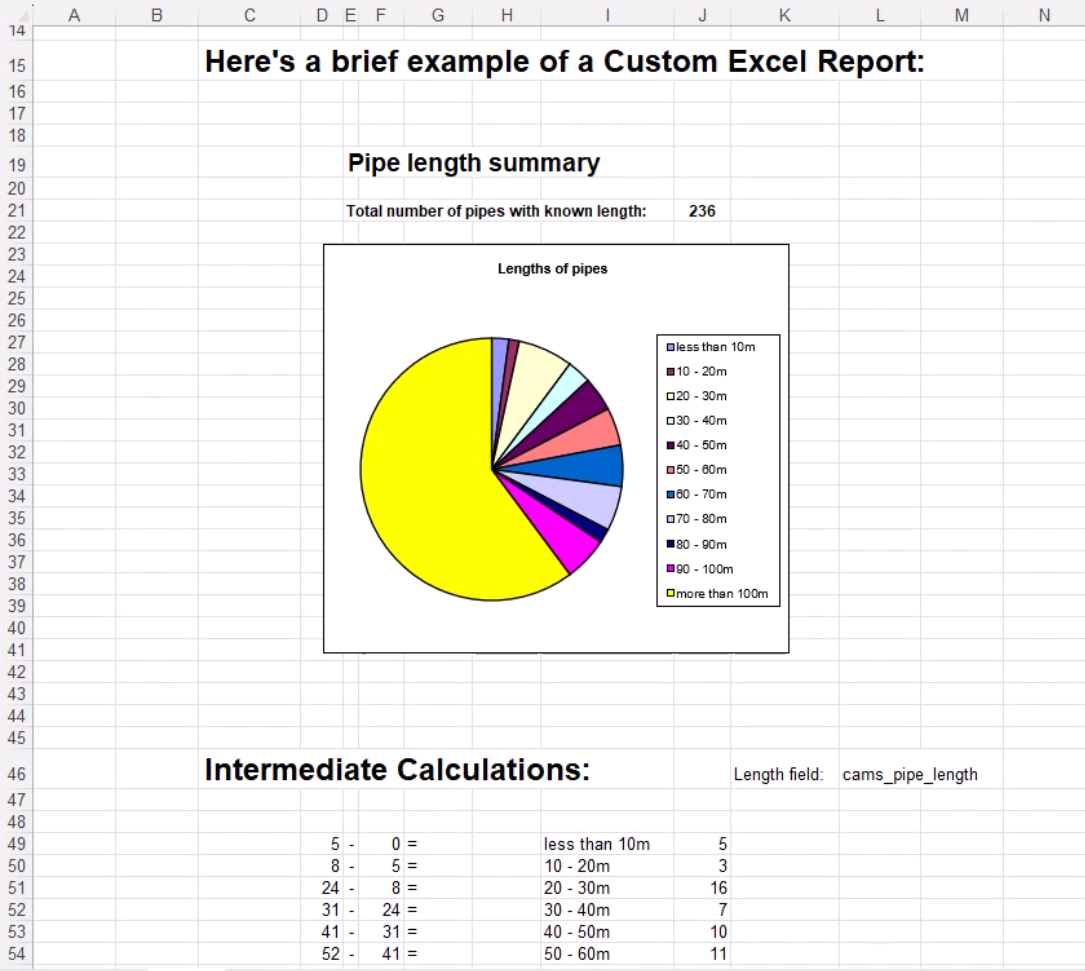
A Custom Report is a customized Microsoft Excel report template that is used to generate reports on the data in an InfoAsset Manager database. This export process uses a Custom Report template that is stored in the database. The underlying template can be edited in Excel, enabling any type of data analysis that is supported by Excel.
To create a report from scratch, an Excel file is required to base it on. A simple example is included in the InfoAsset Manager installation.
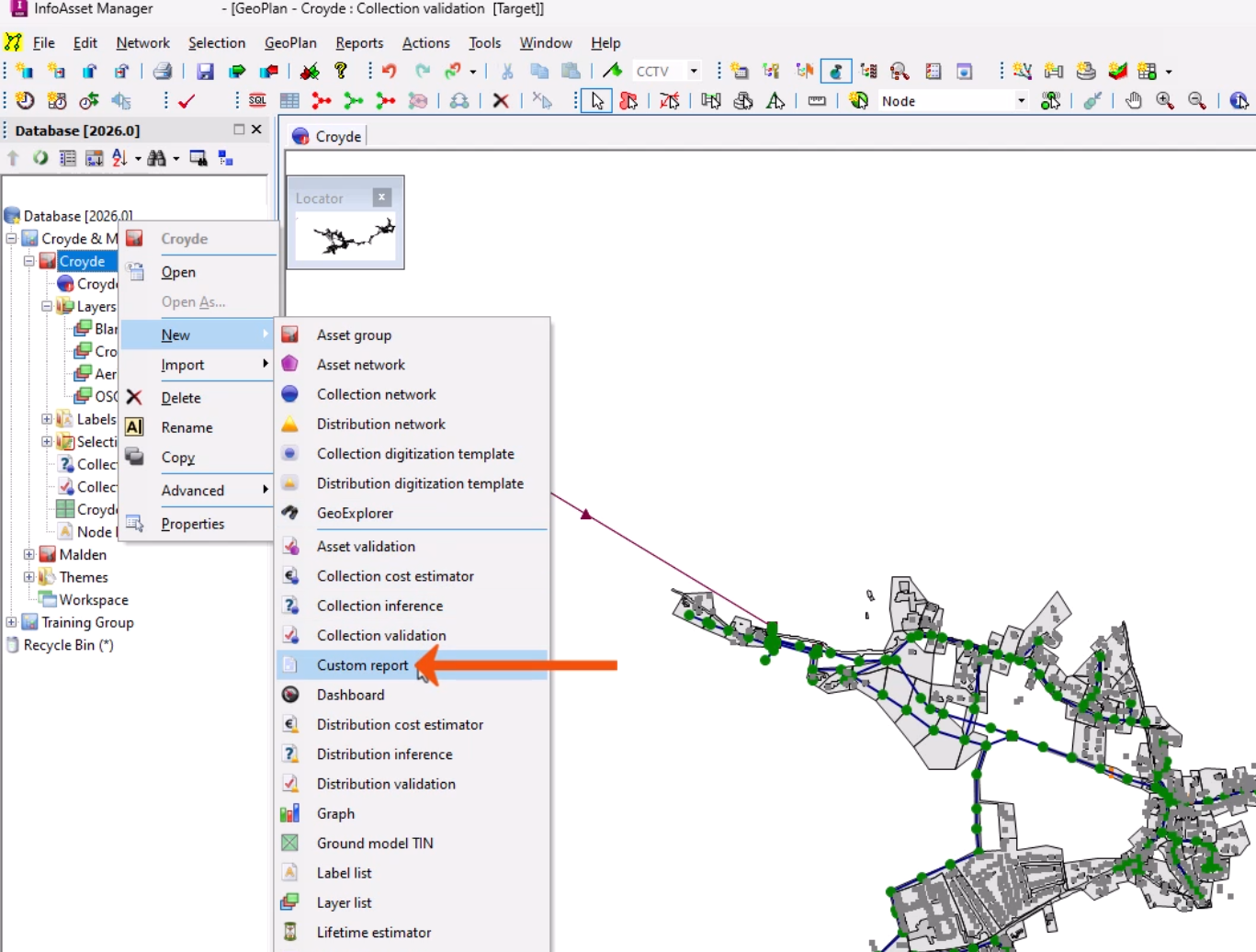
- In the Explorer window, right-click an Asset Group and select New > Custom report.
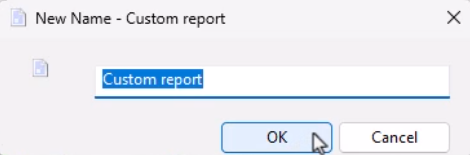
- In the New Name popup, enter a name.
- Click OK.
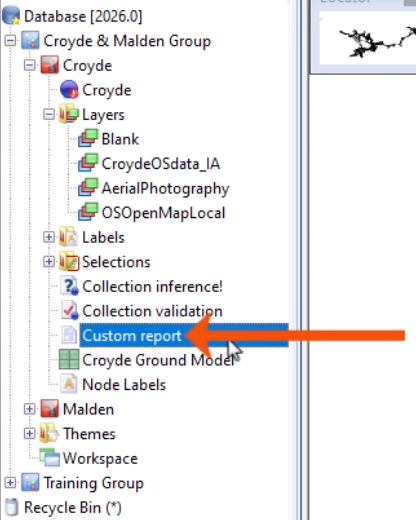
- In the Explorer, double-click the newly created custom report object.
- In the Custom Report dialog, click Select to browse for and select the Excel template to be associated with the custom report.
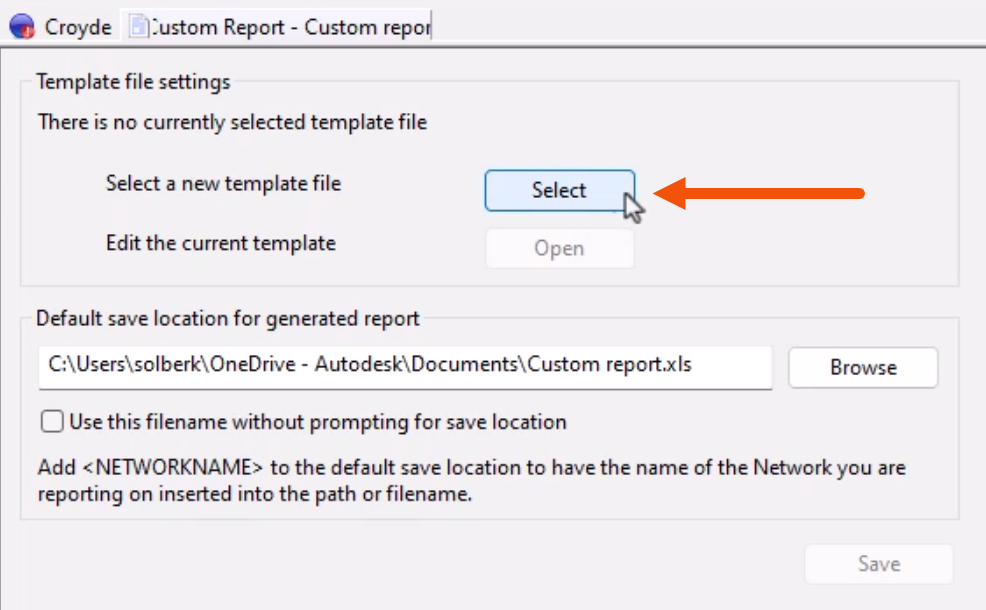
- Click Open to edit the associated template as needed.
- Specify the save location and filename for the generated report.
- Click Save.
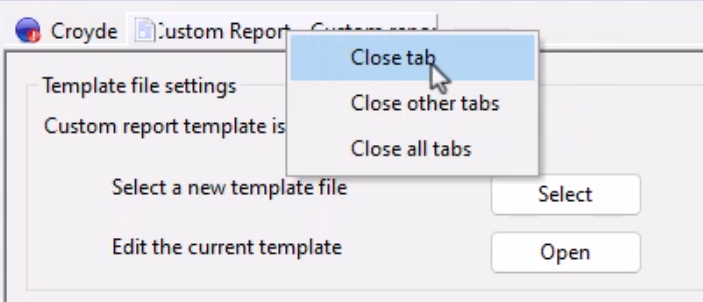
- To close the dialog, right-click the Custom Report tab and select Close tab.
Now, generate the report.
- From the Explorer window, drag the custom report and drop it onto the network.
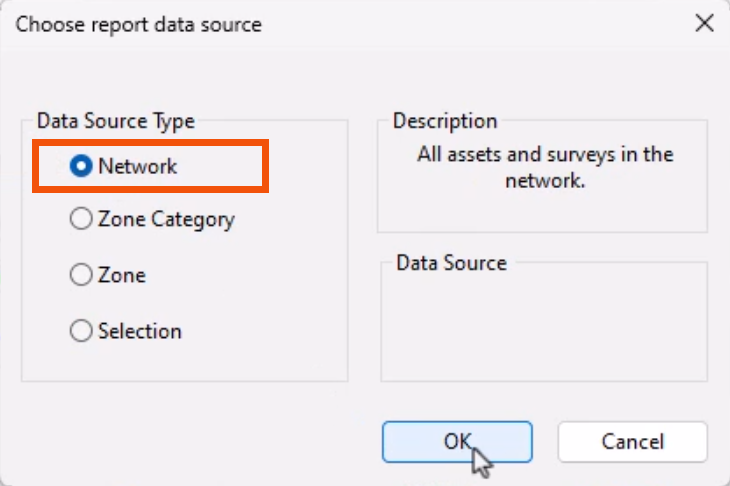
- In the Choose report data source dialog, for this example, select Network.
- Click OK.
The report is saved in accordance with the options selected in the Custom Report dialog. InfoAsset Manager then opens the report file in Excel.