Customize report templates in InfoAsset Manager
Copy and customize a report template, and then run a report based on the new template.
Customize report templates in InfoAsset Manager
Step-by-step guide
Built-in reports are based on Microsoft Word or XSL templates that are distributed with InfoAsset Manager. It is possible to change the report layout in the template to match your corporate style; for example, to add a company logo. The contents of the report can also be customized.
It is good practice to make a copy of any built-in template that is being customized, and to save customized templates in a different folder location. Then, point to this location path in the Report Options dialog.
To customize a built-in template:
- For this example, create a copy of ManholeReport.doc.
- Open the template copy in a document editor.
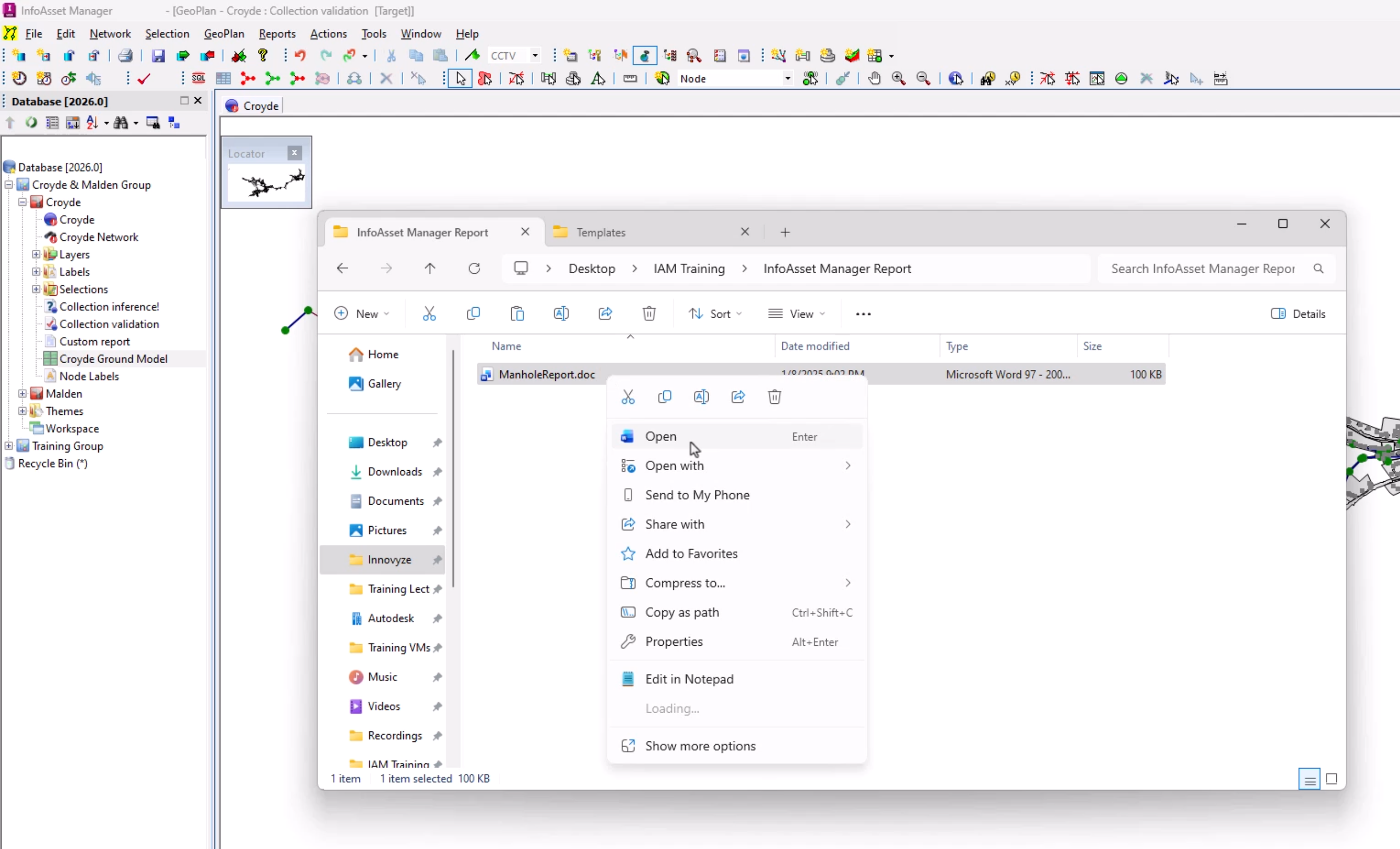
- Make the desired changes. For this example, a signature box is inserted for the surveyor to sign before submitting the data.
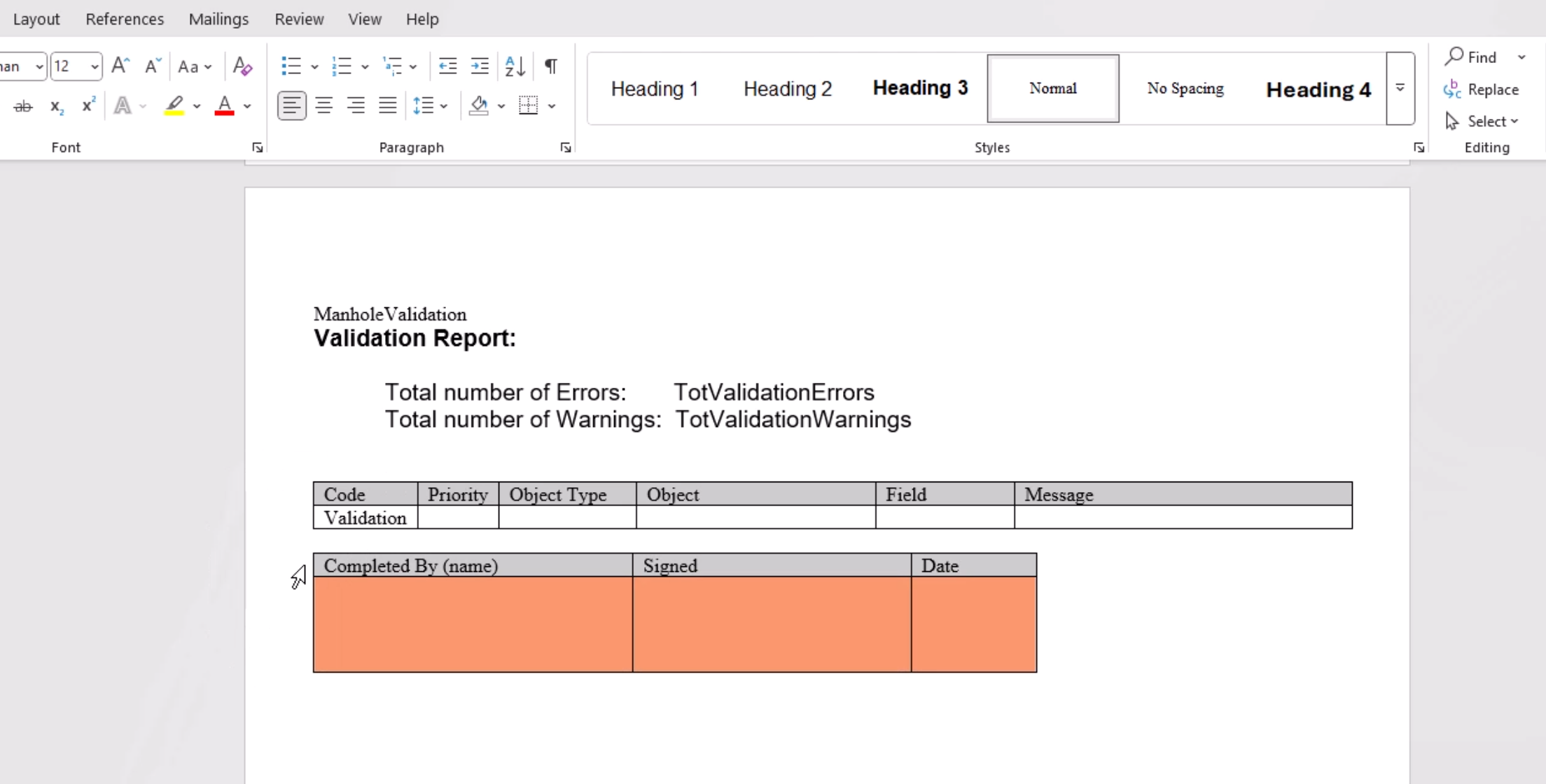
- Save the changes.
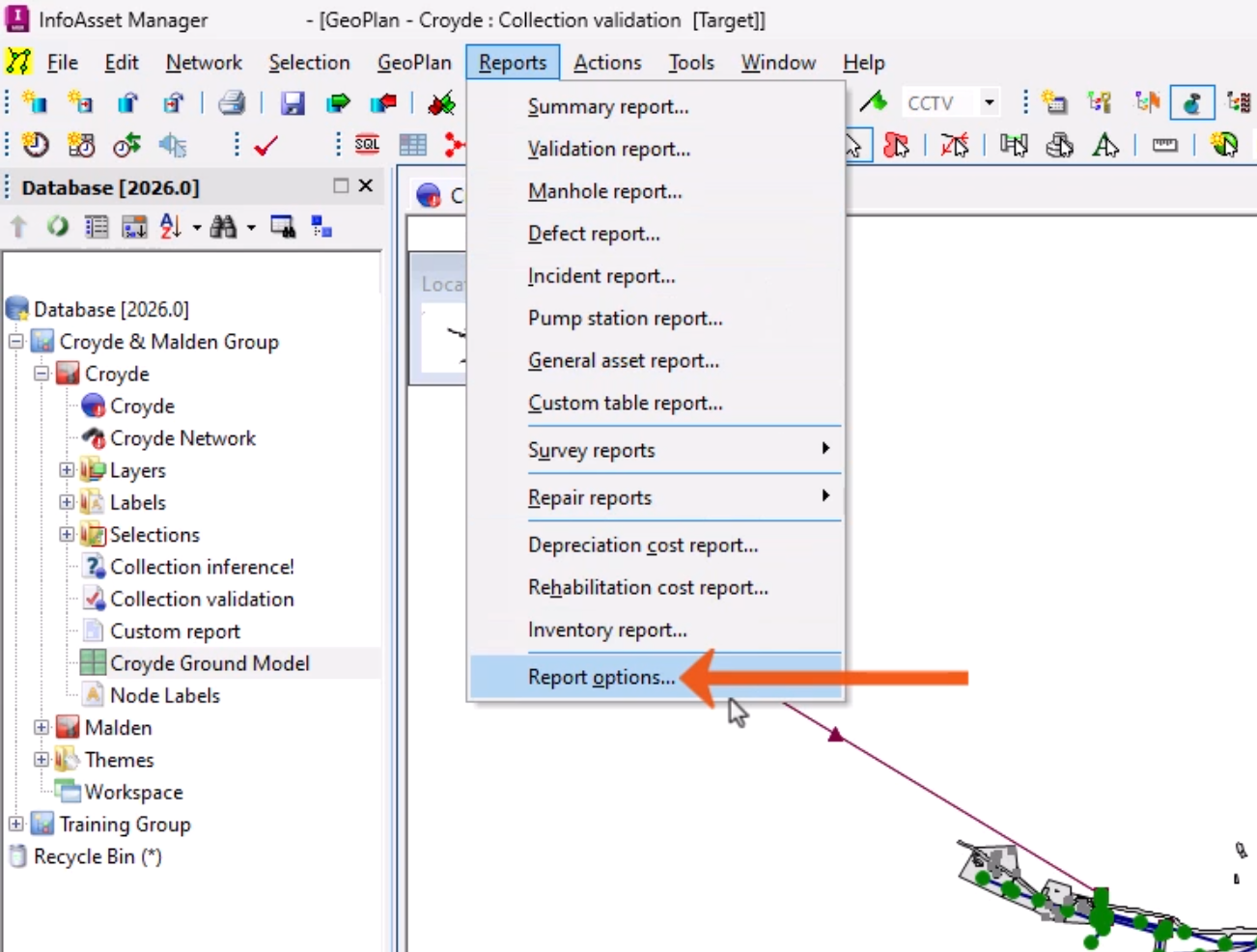
- In InfoAsset Manager, from the Reports menu, select Report options.
- In the Report Options dialog, in the Template Locations group, next to Template location folder override, click Browse.
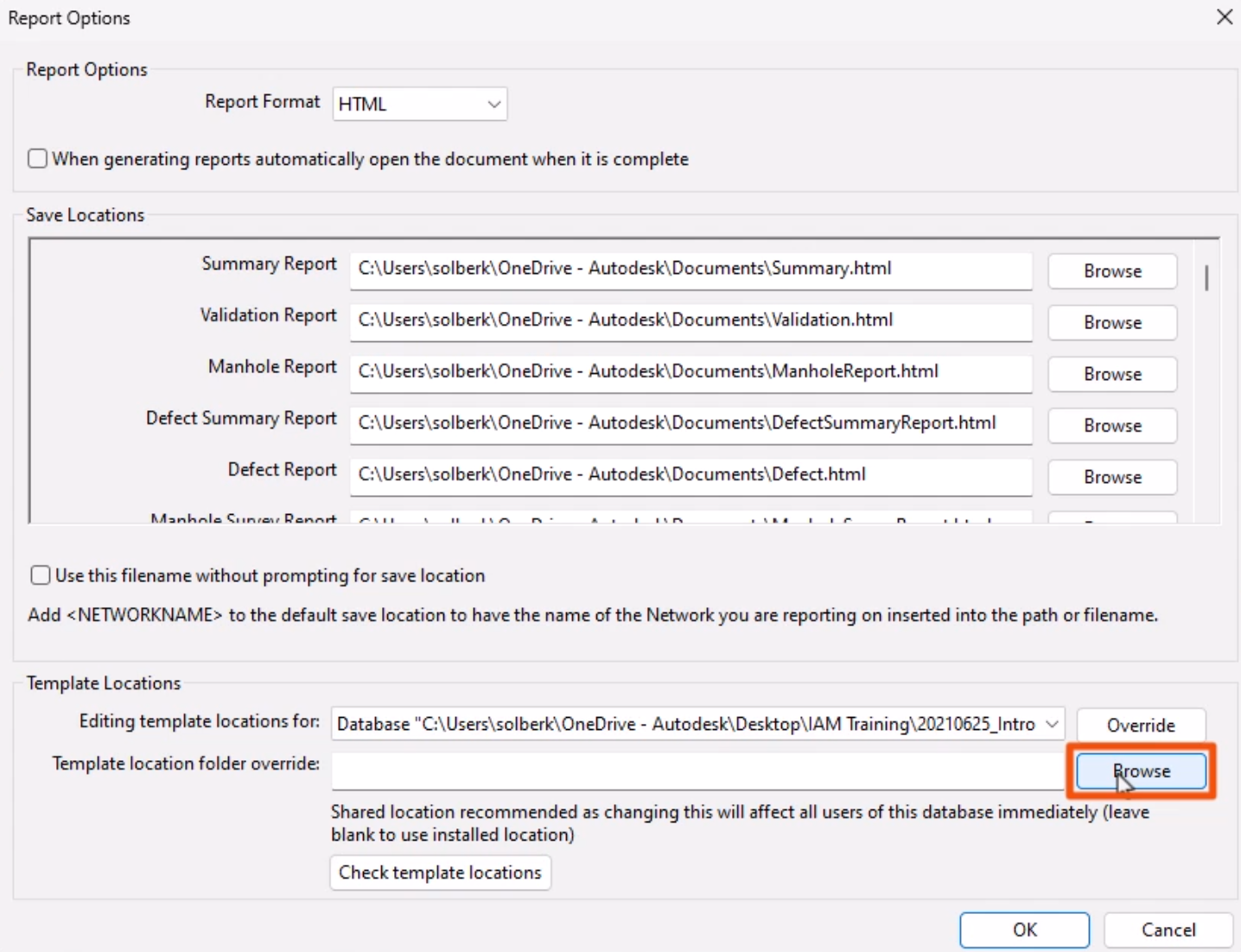
- Navigate to and select the folder for the new template.
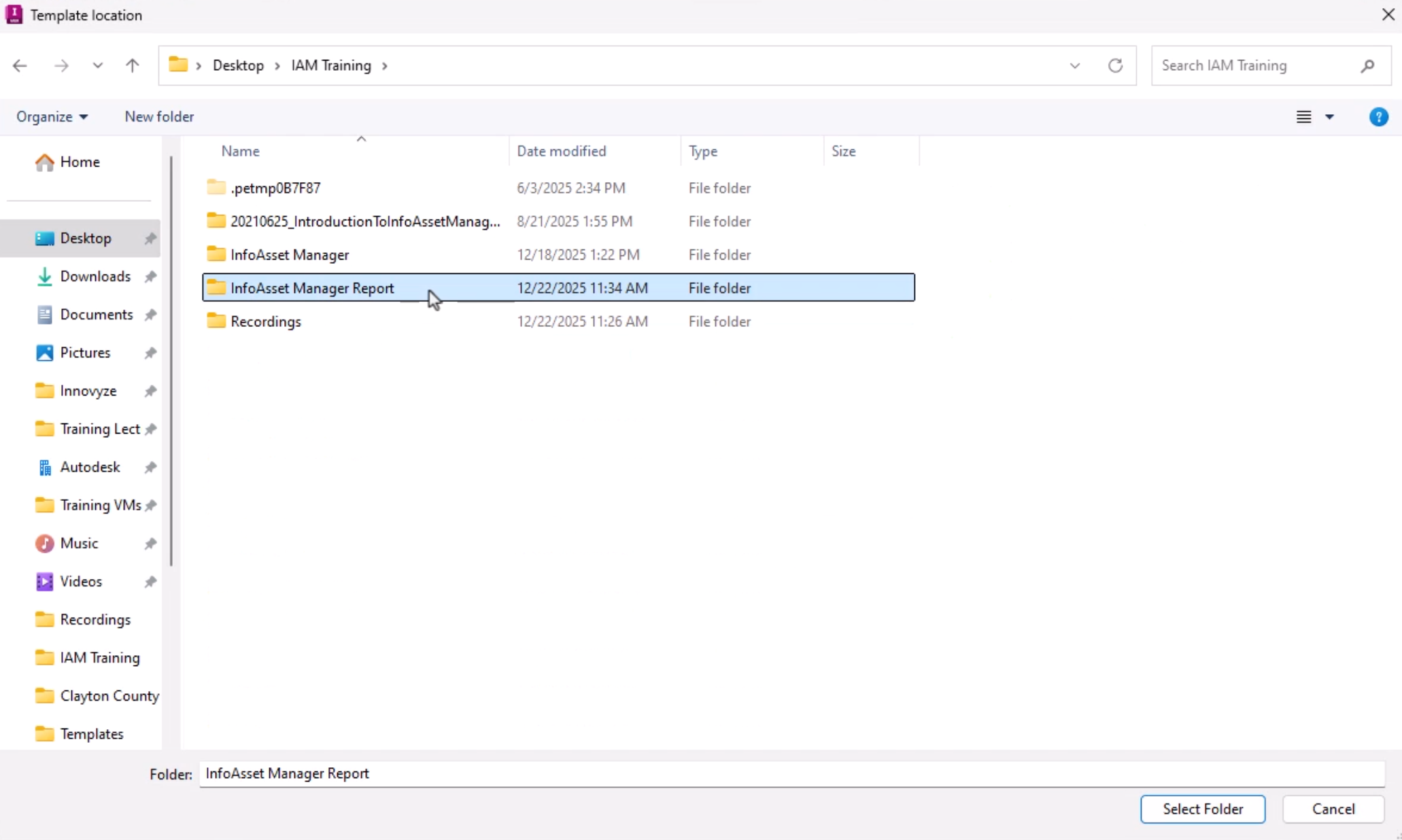
- Click Select Folder.
- Optionally, click Check template locations to display a log listing the report templates found at the specified location and the installed location.
A notification indicates that one template was found at the specified location.
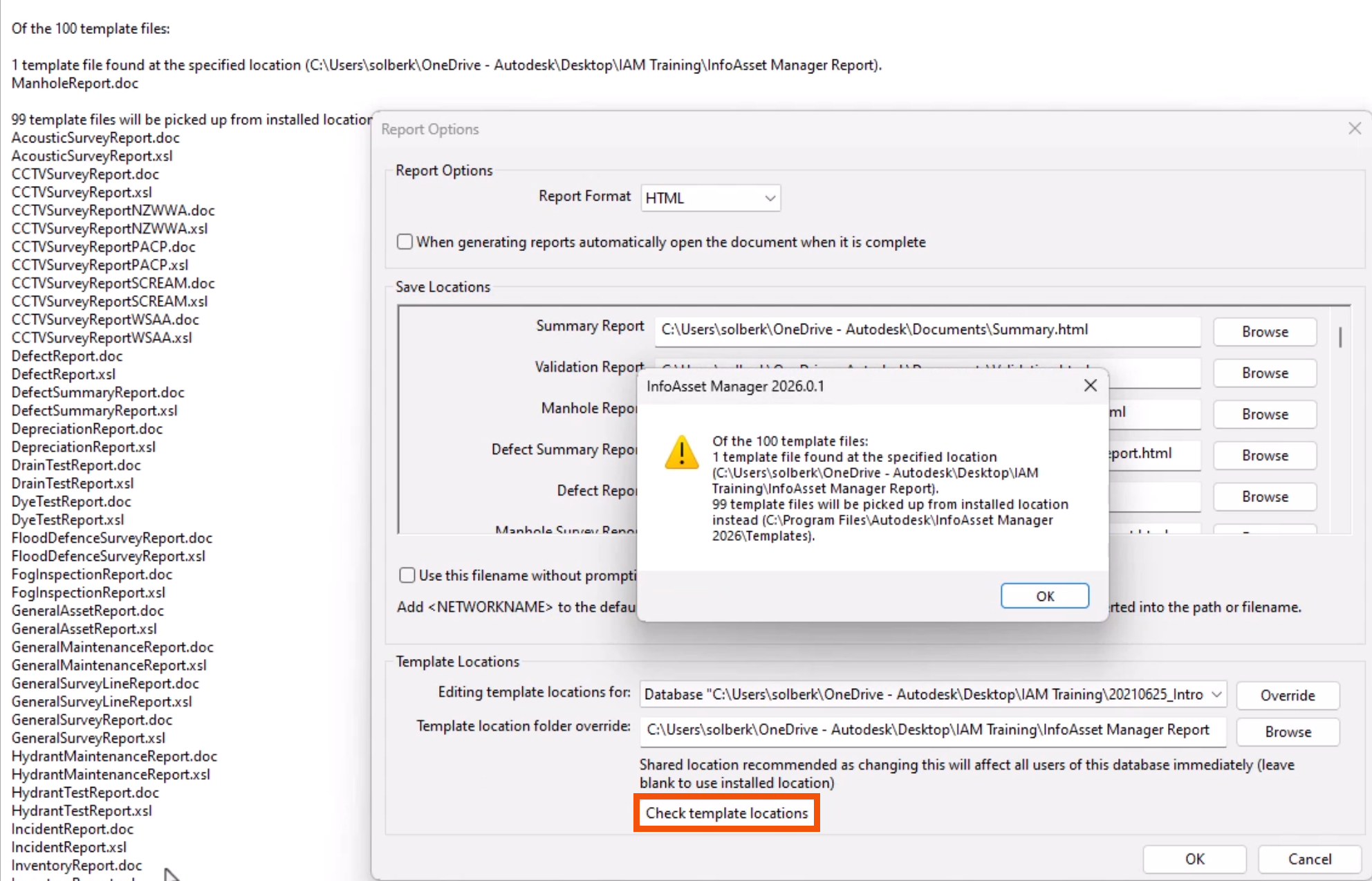
- Click OK twice to close the notification and the Report Options dialog.
Now, when a Manhole Report is created, the customized template will be used.