
Learn Fusion for CAM in 90 minutes (Imperial)
Course overview
In this course, you’ll get hands-on with the Manufacture workspace in Autodesk Fusion by following a project to create a multi-part cellphone holder. Along the way, you’ll build essential Fusion CAM skills—setting up projects, programming parts using 2.5-axis and 3-axis toolpaths, drilling holes, roughing and finishing, validating toolpaths, and exporting code for a standard 3-axis CNC mill.
To help reinforce what you’ve learned, the course includes practice and challenge assignments and a final test so you can apply your skills independently and start making parts with confidence. Instruction and course files are provided in imperial.
The step-by-step video instruction totals approximately 90 minutes. The course also includes a final test, practice and challenge exercises and a course challenge that give you opportunities to apply what you've learned. These activities take additional time to complete and are not included in the 90-minute estimate.
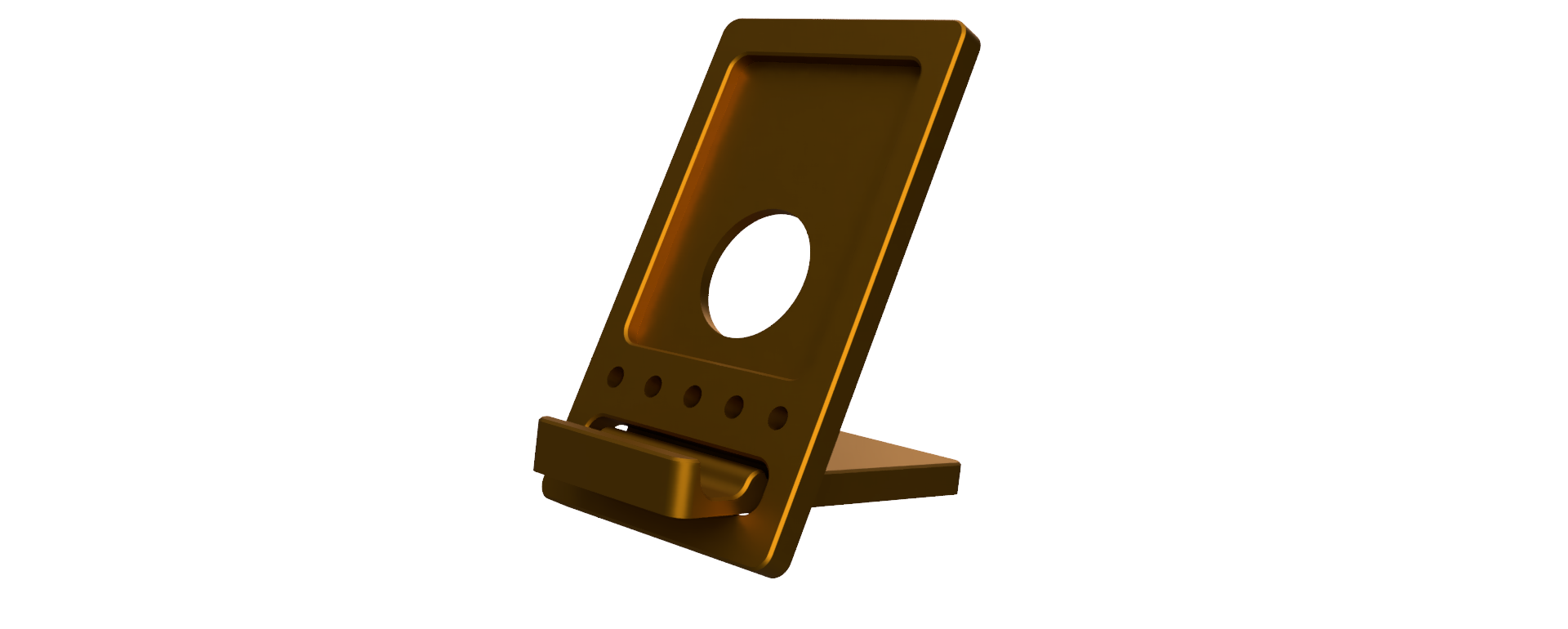
After completing this course, you'll be able to:
- Set up stock for CNC milling in Autodesk Fusion.
- Create toolpaths to rough and finish a mechanical part.
- Validate toolpaths and stock removal with simulation.
- Create documentation and G-code to control a CNC mill.
Course downloads
These downloadable resources will be used to complete modules in this course:
Teaching supplements
Resources just for educators
Teach this course in the classroom or assign it to students as homework. Download the provided instructor guide for teaching the course content in the classroom, with learning objectives and estimated times for demonstration and practice. Additionally, lecture slides, exercise files, and a grading rubric for the challenge in the course are provided. Students can either work in teams or solve the challenges on their own.
Want to create custom learning playlists to share with your students?
Choose and share the modules and courses that best fit your curriculum using Lists. Once you create a List, share the URL with your students and they can sign into their Autodesk Account to access.
- To create a List, select [+] 'Add to list' in the banner of a course or module.
- To share a list with others, set the list visibility to Public and share the link.
Download teaching supplements:
Announcements
During the recent Fusion Fall 2026 updates, several changes were made to CAM Milling toolpaths that may impact your ability to follow along with the content.
Toolpath Name Changes: Several CAM Milling toolpaths have been renamed.
-
2D Adaptive Clearing – Is now 2D Adaptive Roughing
-
2D Pocket – Is now 2D Offset Roughing (Pocket)
-
3D Adaptive – Is now 2D Adaptive Roughing
-
3D Pocket – Is now 2D Offset Roughing (Pocket)
Removal of Model Overrides: Model overrides allowed optional selections of geometry to machine, such as models with filled-in geometry or specific surfaces. This functionality has been removed and will now be handled through the Surface Manager.
Avoid/Touch Surface Change: The Avoid/Touch Surface functionality remains the same but has been renamed to Surface Manager.