Reintegrating scenarios
Any referenced datasets can be downloaded from "Module downloads" in the module overview.
Video quiz
Step-by-step Guide
In InfoWorks WS Pro, if changes to a certain object or group of objects meet your needs within a scenario, make it your baseline scenario moving forward.
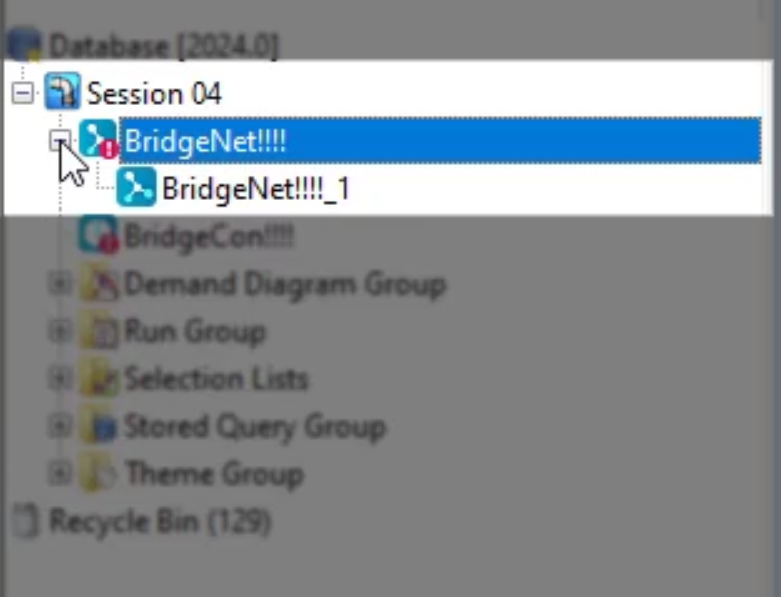
- Open the BridgeNet network and the BridgeCon control in the workspace.
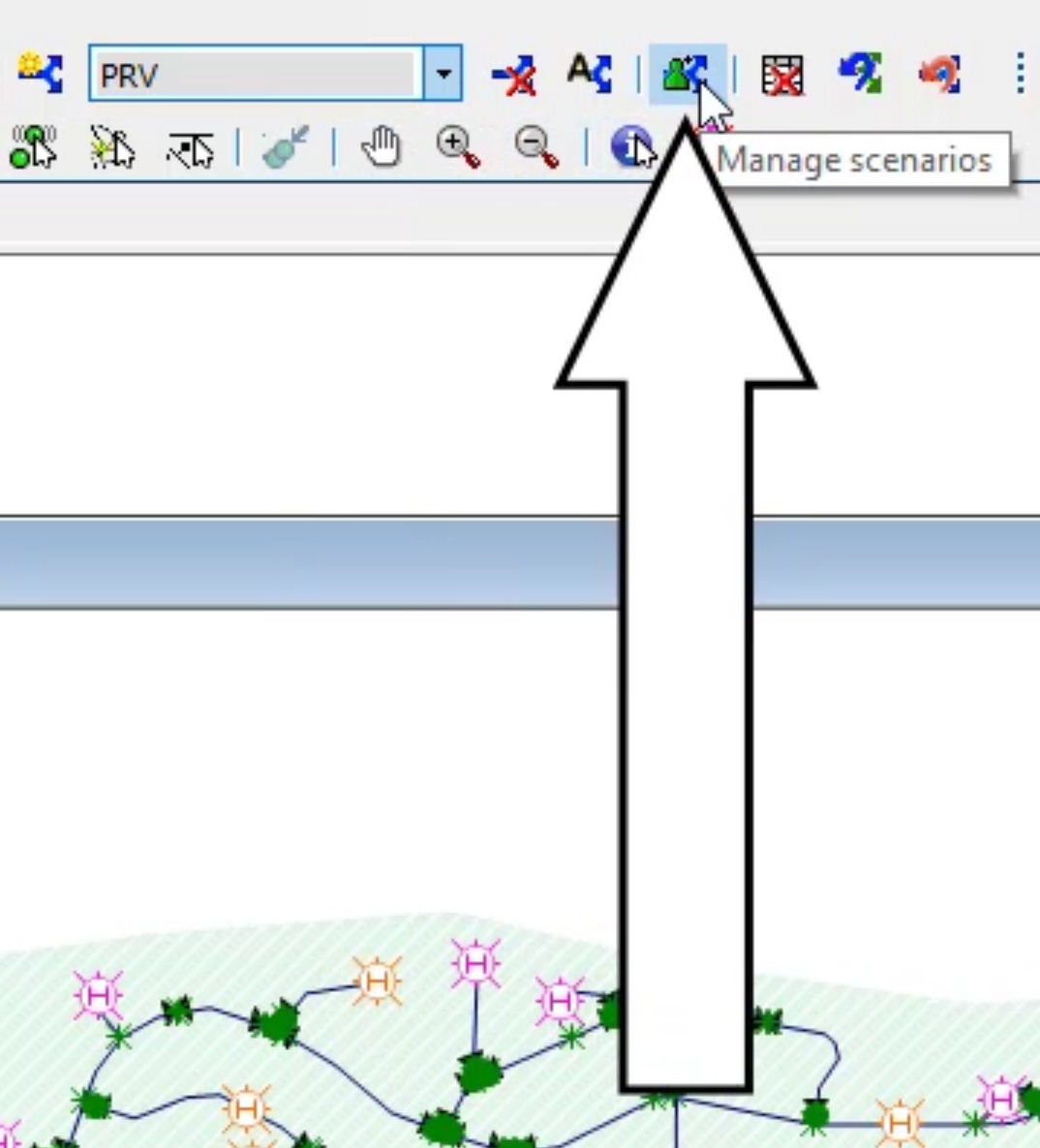
- Select the PRV scenario.
- In the toolbar, click Manage scenarios.
- In the Scenario dialog box, select Network.
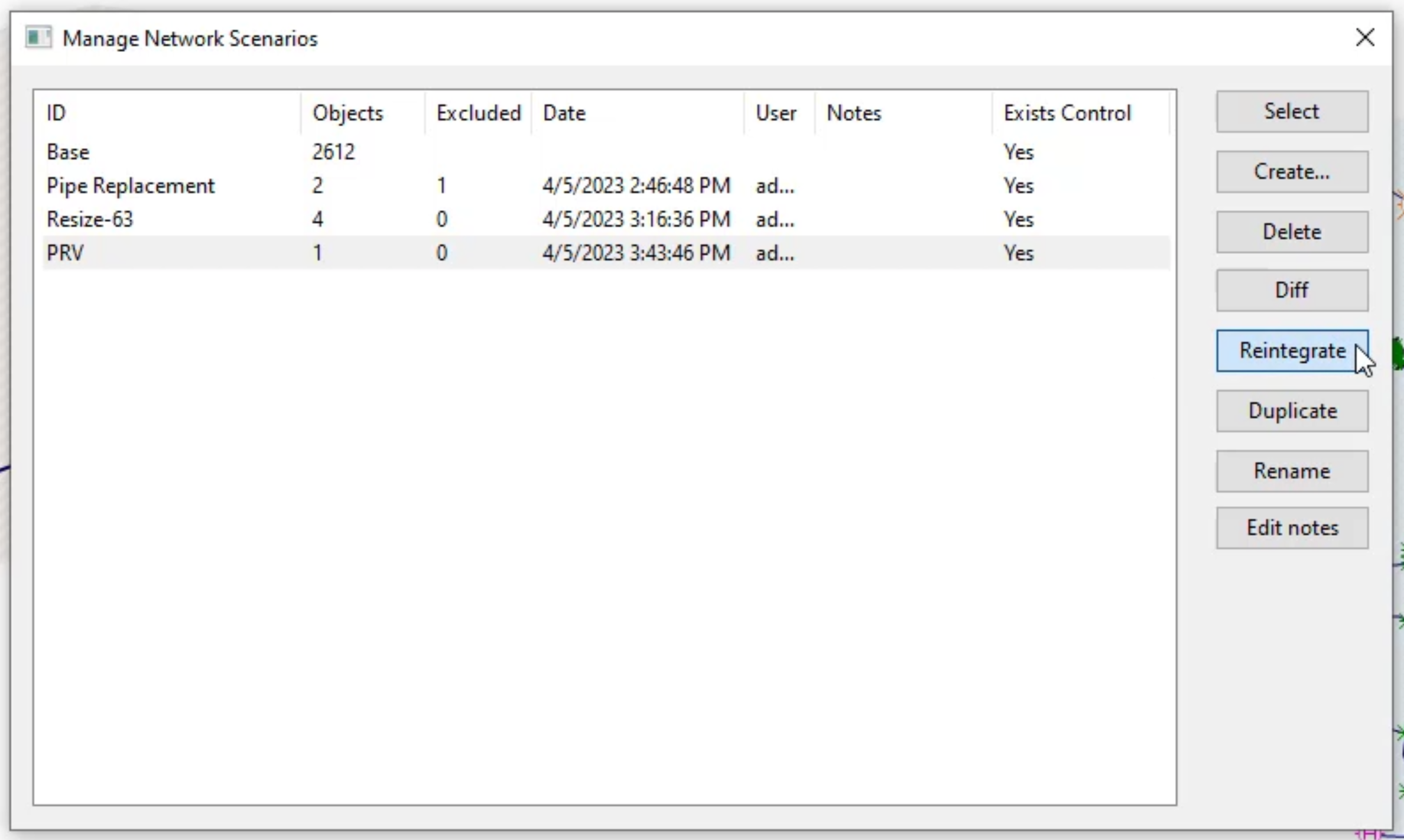
In the Manage Network Scenarios dialog box, notice that the PRV scenario is selected.
To make PRV the new baseline scenario:
- Click Reintegrate.
- In the confirmation dialog box, click Yes.
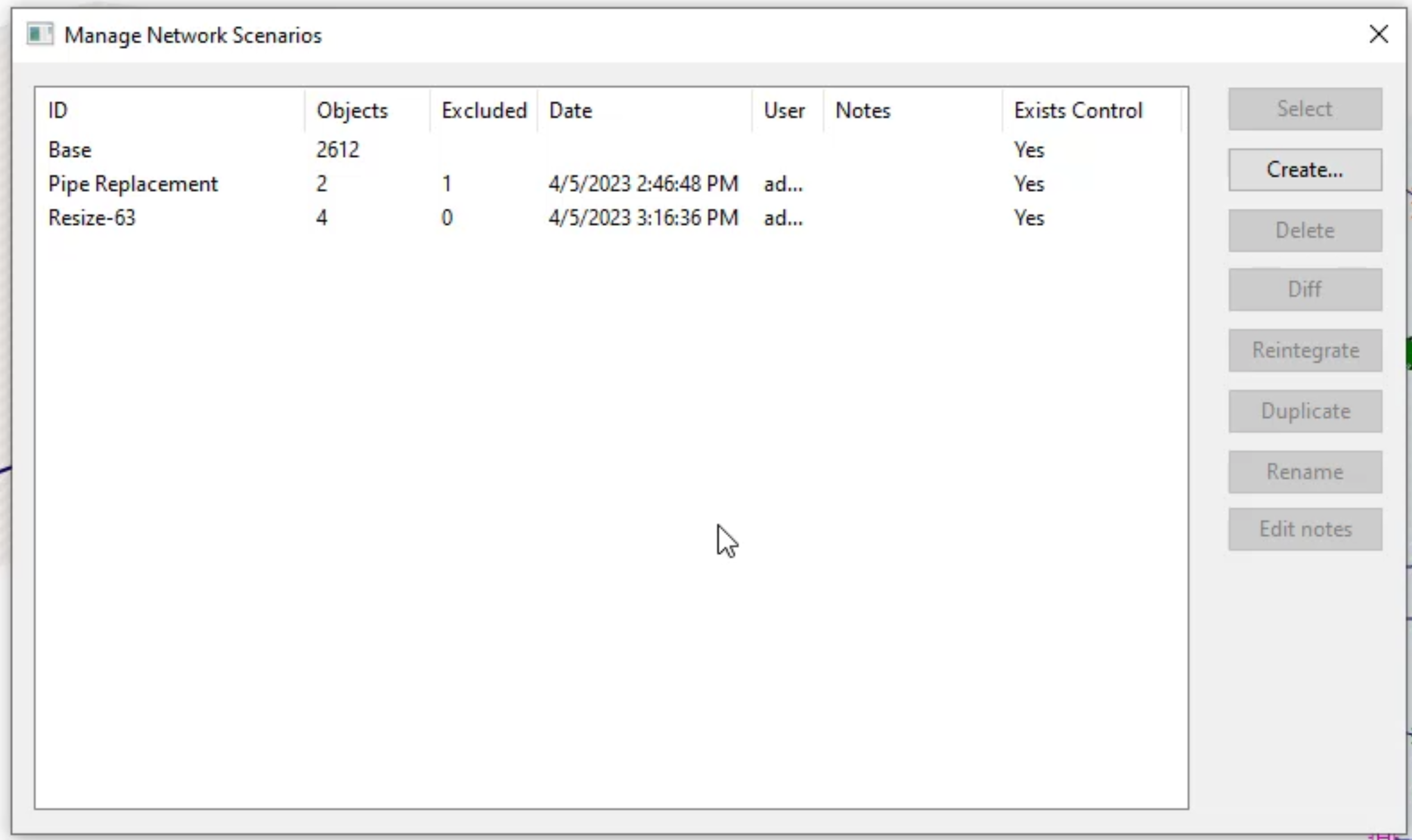
Notice in the Manage Network Scenarios dialog box, the PRV scenario disappears from the list and is promoted to Base.
- Close the dialog box.
Note: To confirm that the new profile is in place, view the properties of the PRV. You can also re-run the Baseline simulation and graph the results, which now reflect the PRV’s new profile.
To undo the new baseline scenario, change and revert to a previous scenario:
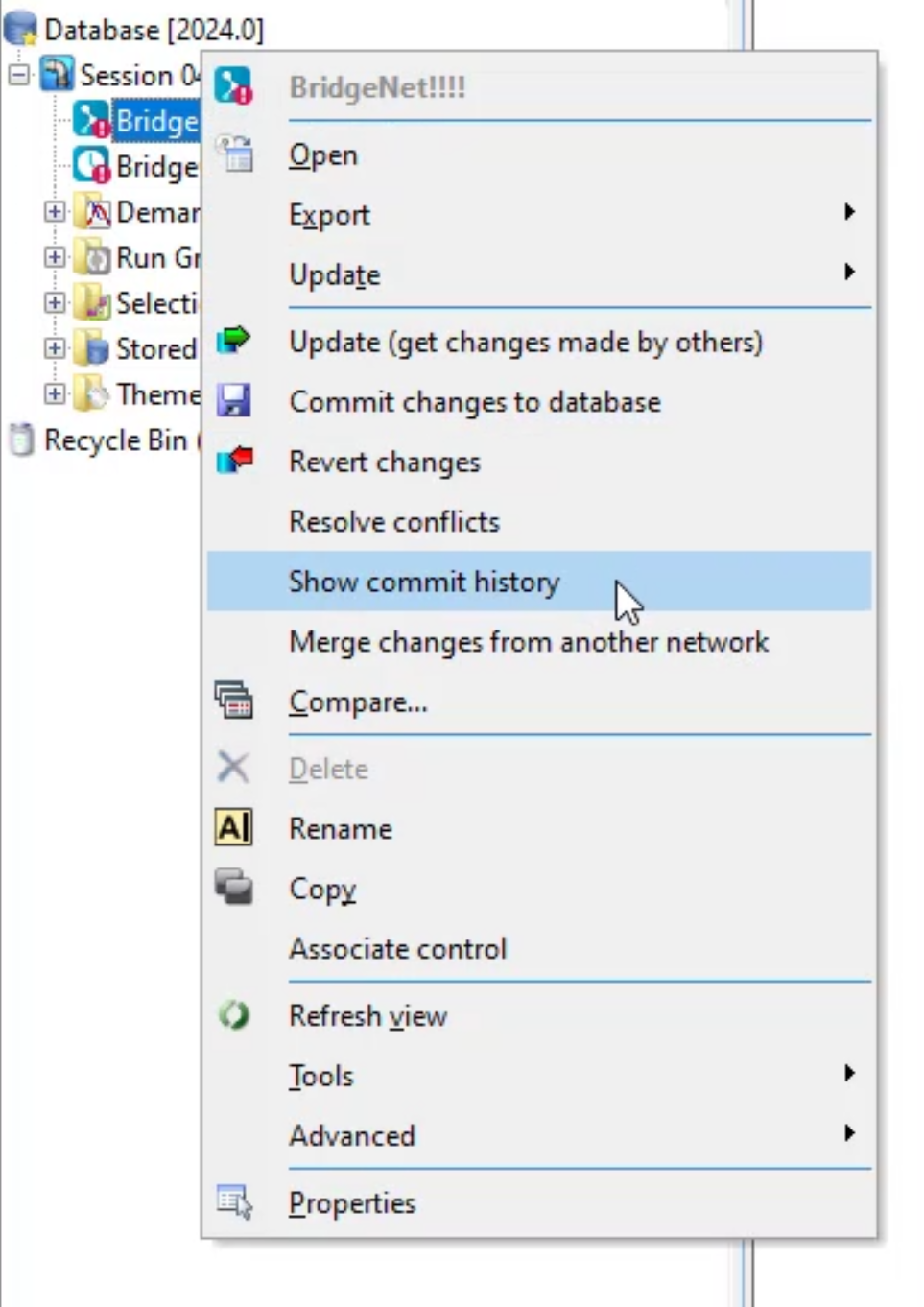
- In the Model Group window, right-click the network and select Show commit history.
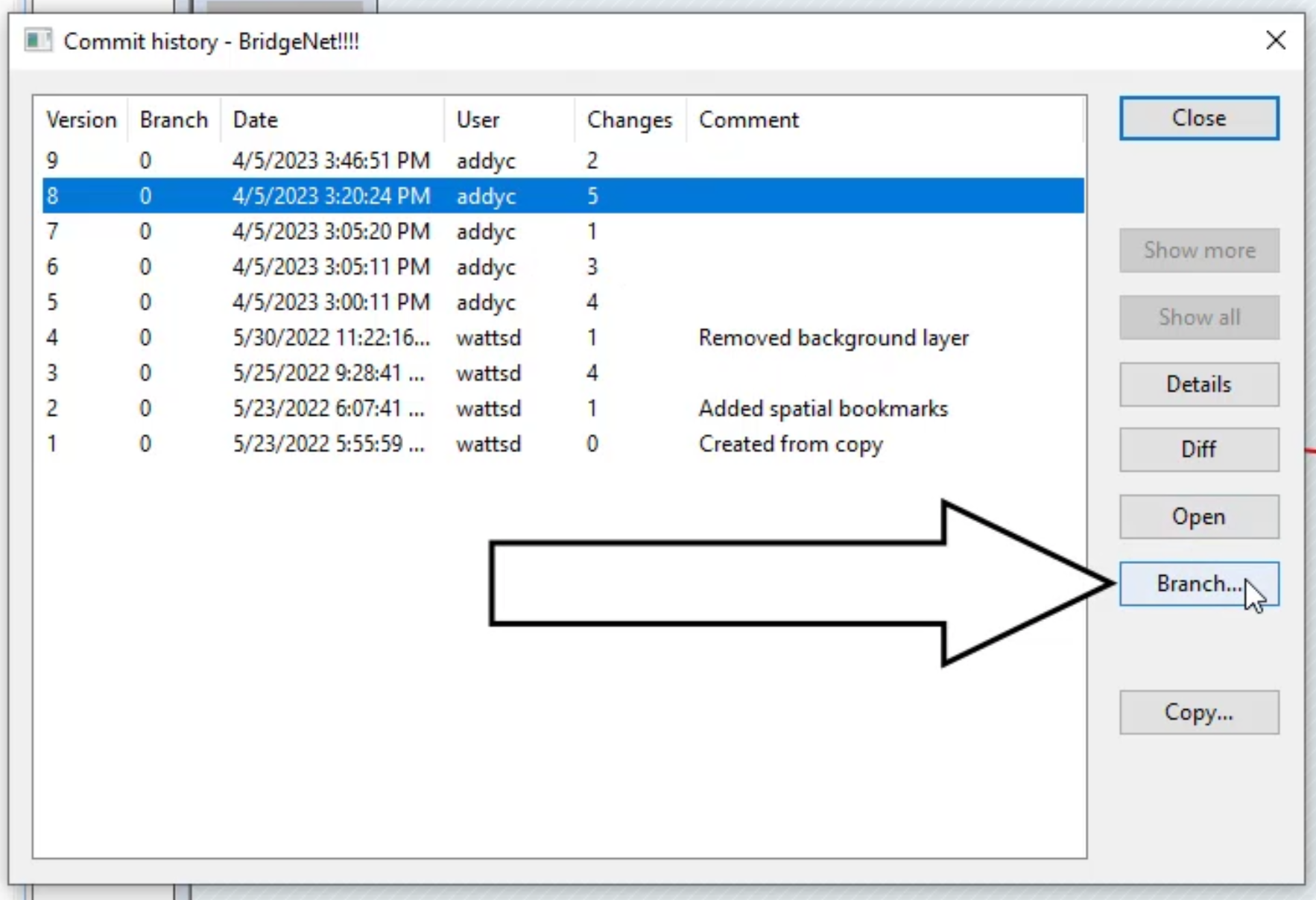
- In the Commit history dialog box, choose the version to revert to as the baseline.
- Click Branch.
- In the Network dialog box, enter a name for the branched network.
- Click OK.
Notice in the Model Group window, the newly branched scenario now appears under the base scenario.