Exploring cover settings
Any referenced datasets can be downloaded from "Module downloads" in the module overview.
Explore cover settings - Exercise
To configure the cover settings in concrete elements, do the following:
- Open Revit then the file STRUCTURAL.RVT (or open any Revit project you are working in).
- On the Structural tab, click the arrow on the Reinforcement tab.
- Select the Reinforcement Cover button (see below).
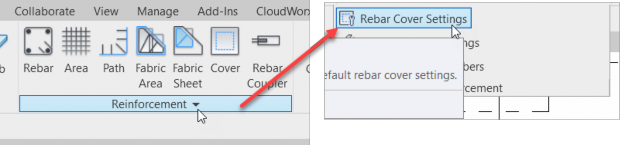
- With the rebar settings dialog open, observe the predefined settings that are available.
- Click Cancel.
- Zoom into the area and cut a section as shown in the figure below.
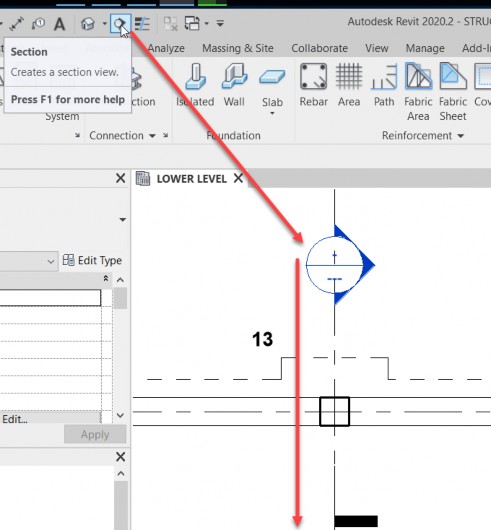
- Hit ESC.
- Open the section by double clicking on the section callout head.
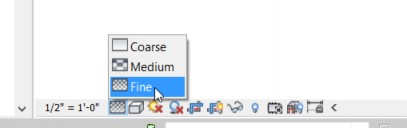
- In the View Control toolbar, set the scale to ½"=1'-0".
- Change the Detail Level to Fine.
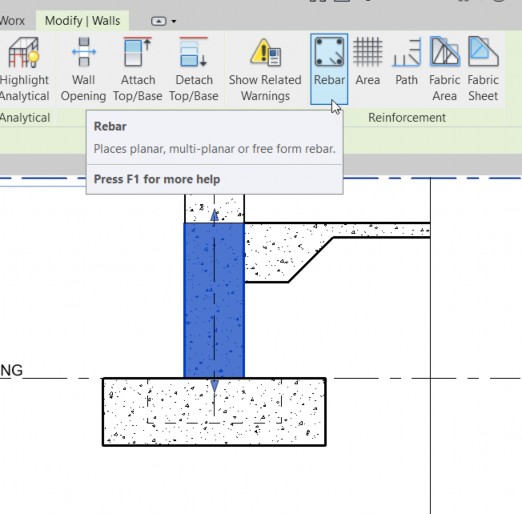
- Select the wall.
- Select the reinforcing button, as shown below.
- Select Parallel to Work Plane, as shown below.
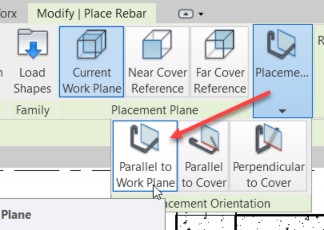
- Move your cursor over the wall. Notice the bar will only extend to the blue lines imbedded in your wall.
- Rename the section to Footing Section 13.
- Save the model.