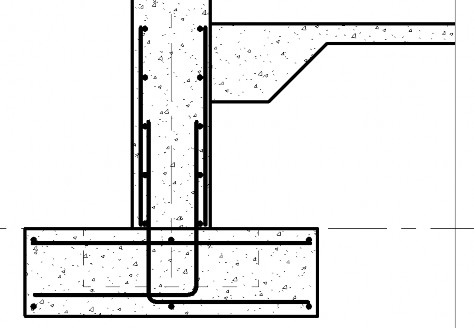
Changing the reinforcing graphics
Any referenced datasets can be downloaded from "Module downloads" in the module overview.
Change the reinforcing graphics - Exercise
Let's start getting the hang of being able to print this and show someone that Revit can show thick, stick-figure rebar, just like back in the 2D AutoCAD days.
- Open Revit then the file STRUCTURAL.RVT (or open any Revit project you are working in).
- Go to the Section 13.
- Set the detail level to Coarse.
- Select the floor.
- In the Properties dialog, click Edit Type.

- Change the Coarse Fill Pattern to Concrete, as shown below.
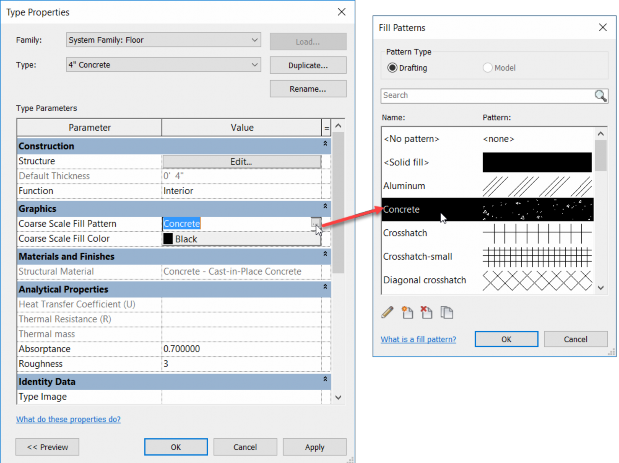
- Click OK.
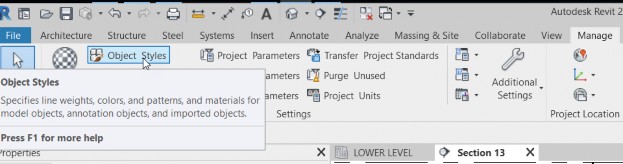
- On the Manage tab, click the Object Styles button.
- Scroll down to Structural Rebar.
- In the Line Weight category, change the Projection and the Cut to 6, as illustrated below.
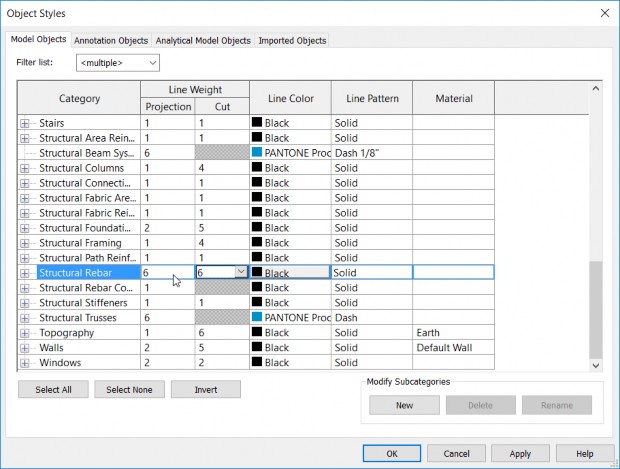
- Click OK.
- Your detail should look like the figure below.